Hospital Settings
Hospital Details
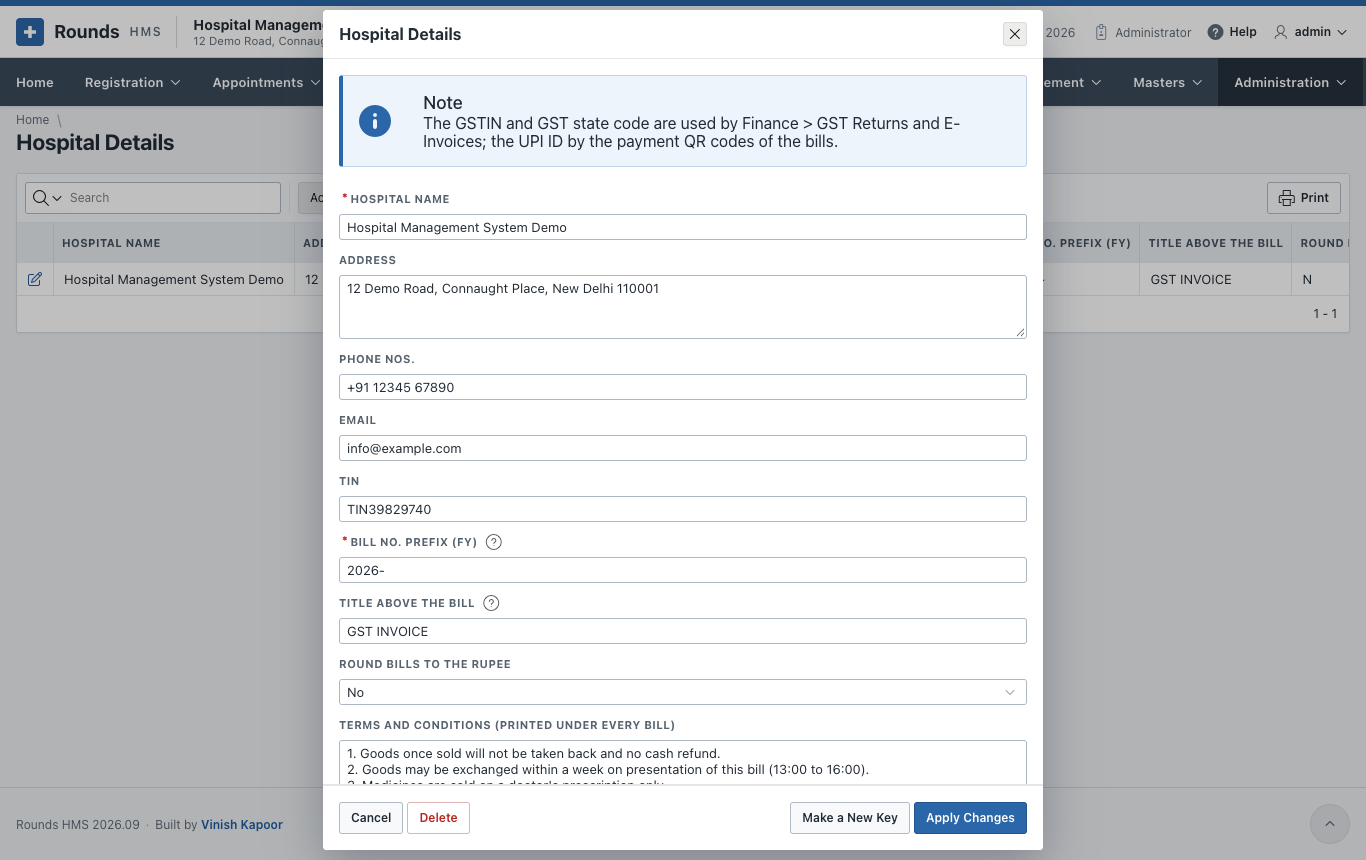
Administration > Hospital Details holds what is printed on every document, and the settings of payments and GST. Click the pencil of the one row:
| Field | Meaning |
|---|---|
| Hospital Name, Address, Phone Nos., Email | the letterhead of every printed document |
| TIN | the old tax number, if still printed |
| Bill No. Prefix (FY) | the prefix of every bill and voucher number, e.g. 2026- |
| Title above the Bill | printed over the hospital's name, e.g. GST INVOICE; empty prints nothing |
| Round Bills to the Rupee | Yes rounds the net amount of every bill |
| Terms and Conditions | printed under every bill |
| Images Viewer (PACS) Address | the web address that opens the images of one examination, with {ACCESSION} where its accession number goes (and {PATIENT} for the C.R. No.). Empty: no View the Images button. |
| GSTIN | the 15-character GSTIN; the GST returns and e-invoices use it |
| UPI ID of the Hospital | the UPI address the payment QR codes pay to, e.g. hospital@sbi. Empty: no QR code. |
| Name on the UPI QR Code | empty: the hospital's name |
| Default District / City of Patients and Default State of Patients | a new registration starts with them, e.g. New Delhi and DL. Empty: the district and state of the patient registered last. |
| GST State Code | two digits, e.g. 07 for Delhi. Empty: the first two digits of the GSTIN. |
| PIN Code | of the hospital |
| SAC of the Services | the service code the GST returns and e-invoices give the hospital's services |
| E-invoices for Company Bills | Yes when the hospital's turnover requires e-invoicing |
| Give a Token at Registration | Yes puts every patient registered or renewed for a doctor into that doctor's O.P.D. queue, and prints the token on the slip |
| Token Display Refreshes Every (seconds) | how often the screen of the waiting area looks for a new token |
| Key of the Token Display | the key carried in the address of the token display. Make a New Key replaces it, which stops every address handed out so far. |
Click Apply Changes.
Taxes
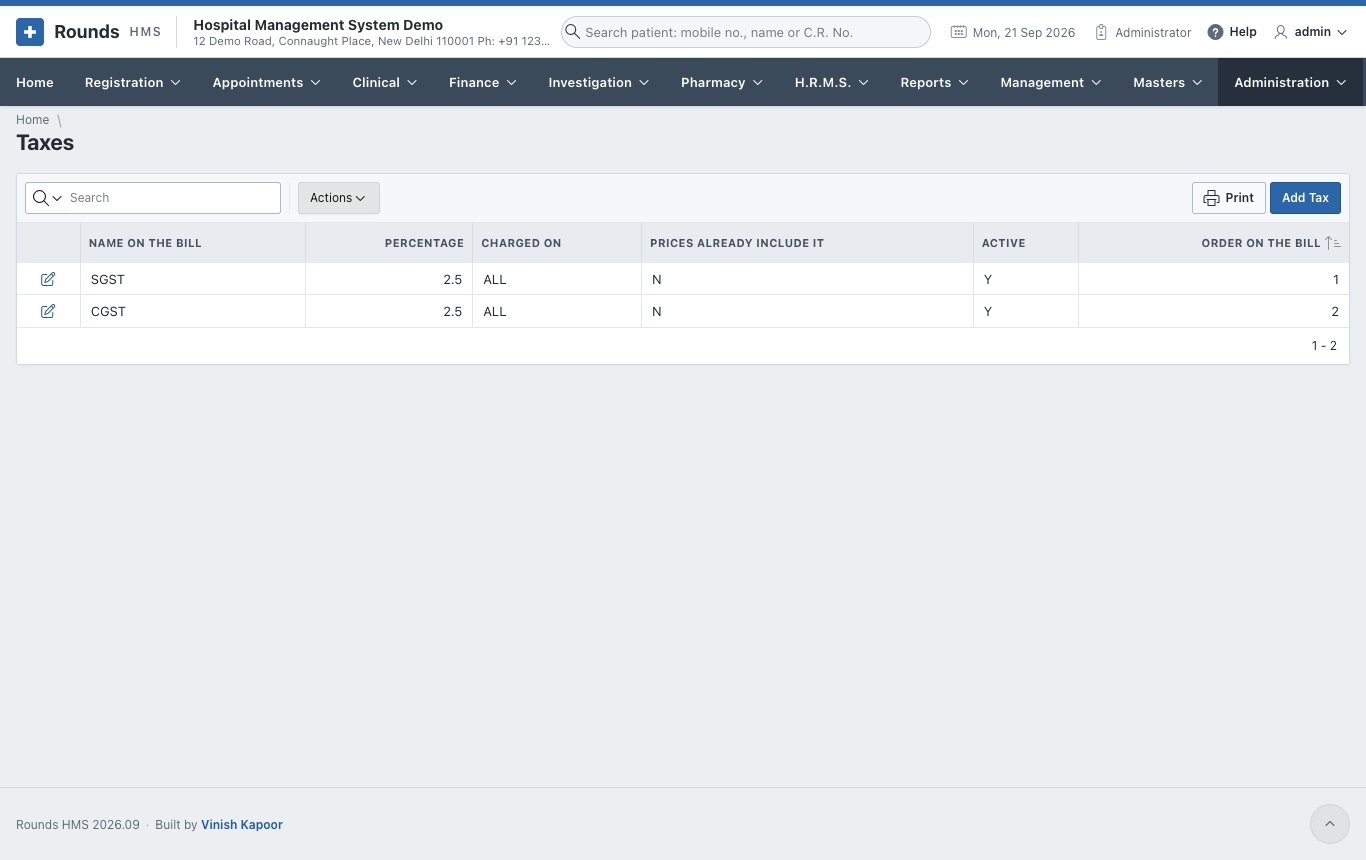
Administration > Taxes holds the taxes of the bills, each printed as its own line:
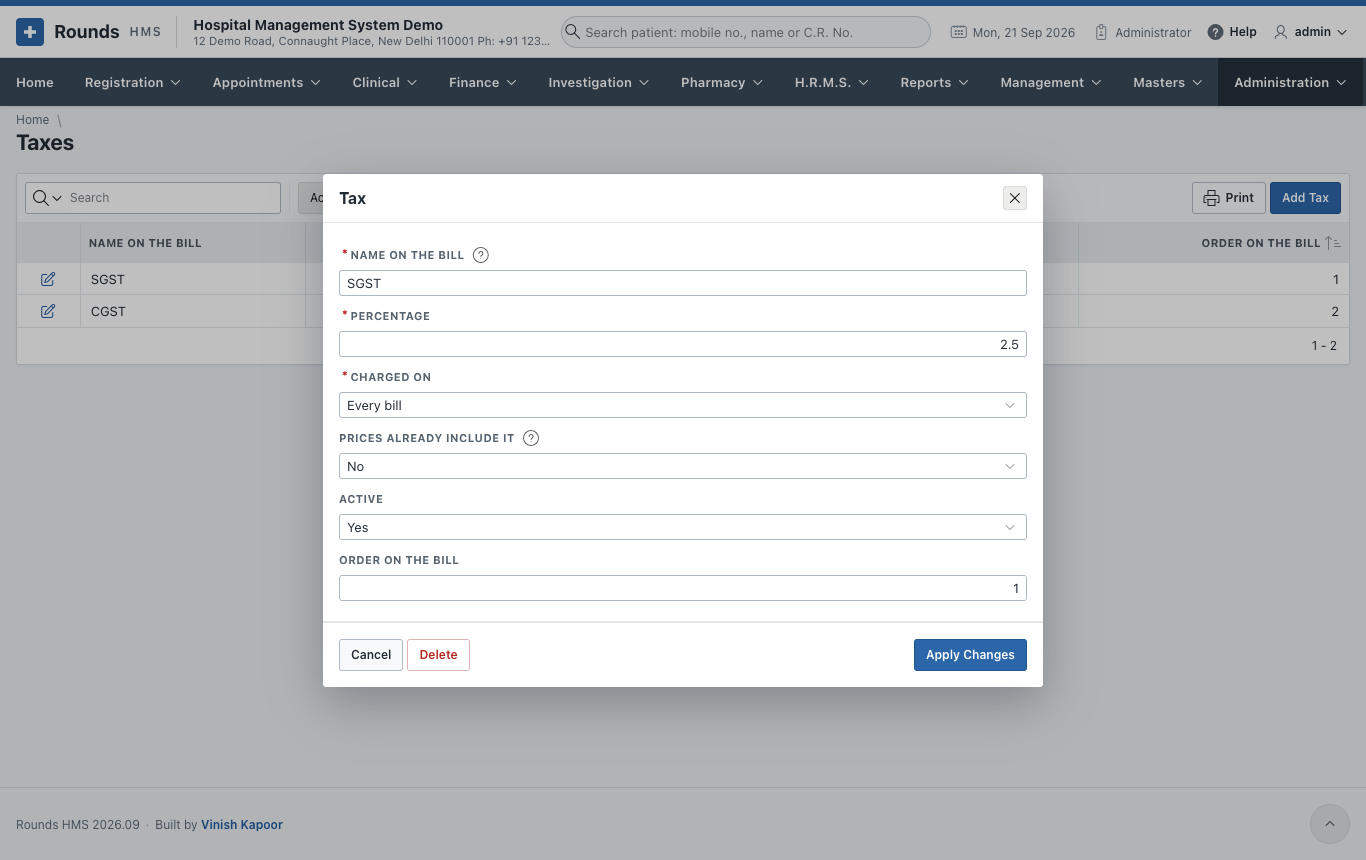
- Name on the Bill: CGST, SGST, IGST ...
- Percentage.
- Charged on: Every bill, Medicine bills and returns, or Cash and credit bills (services).
- Prices Already Include It:
- Yes for the M.R.P. of medicines: the tax is shown within the price;
- No adds the tax on top of the amount billed.
- Active and the Order on the Bill.
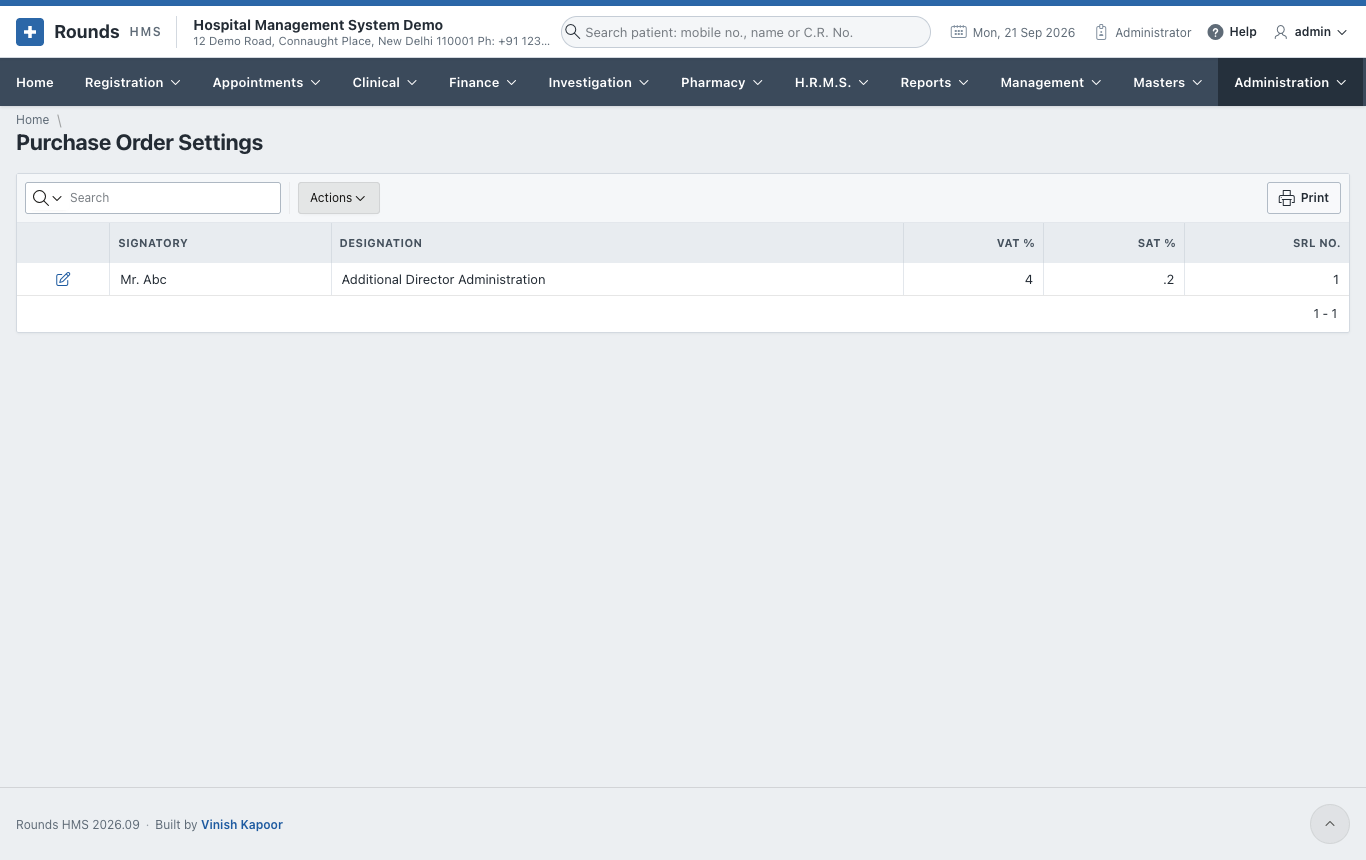
Purchase Order Settings
The Signatory, Designation, VAT % and SAT % printed on medicine purchase orders.
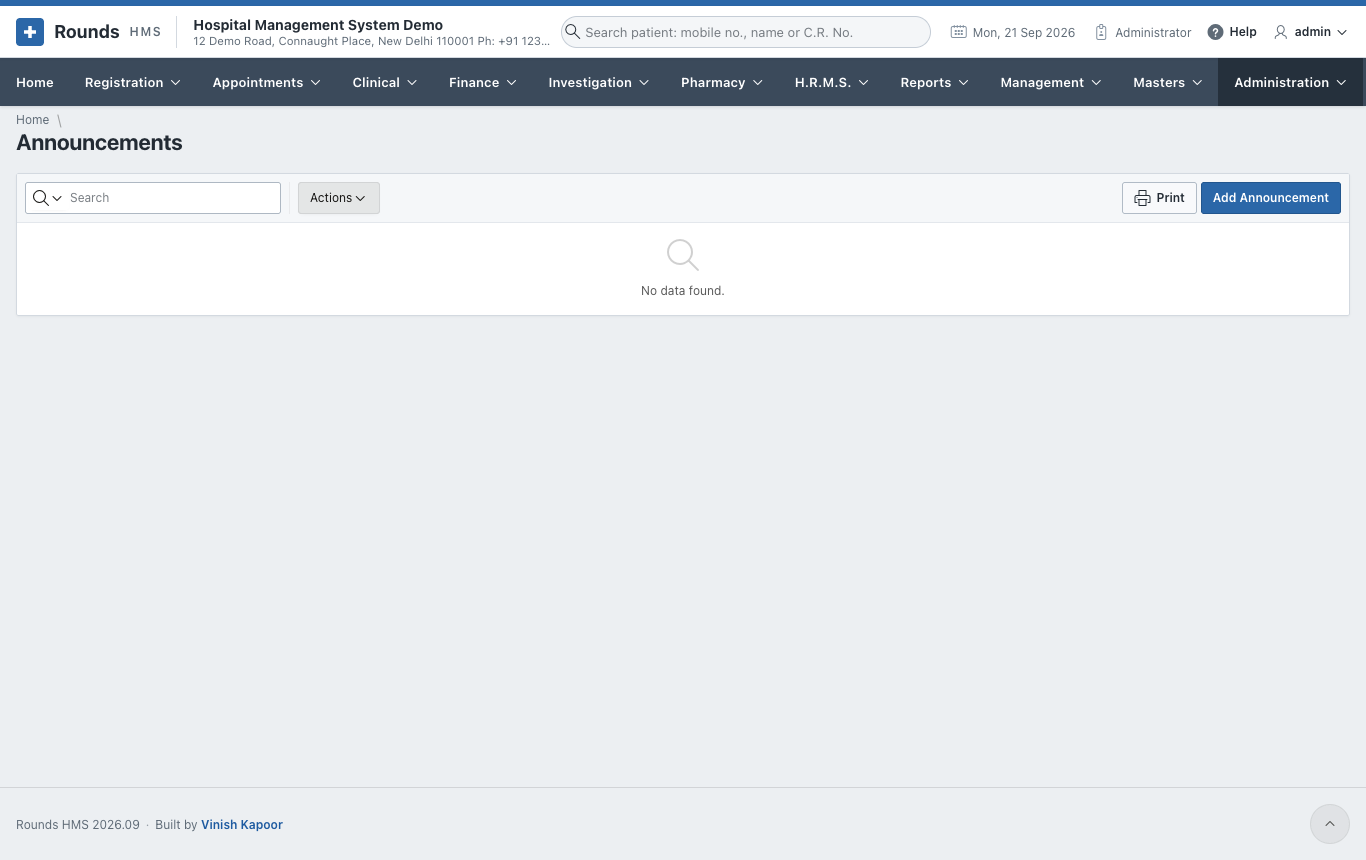
Announcements
Administration > Announcements shows a short message to every user, e.g. Server maintenance at 10 pm. Set the Message, and its Status to 2 to announce it (1 keeps it idle).