X-Ray and Ultrasound
X-rays and ultrasounds are billed first, on a cash bill. The report is then written against that bill.
X-ray reports
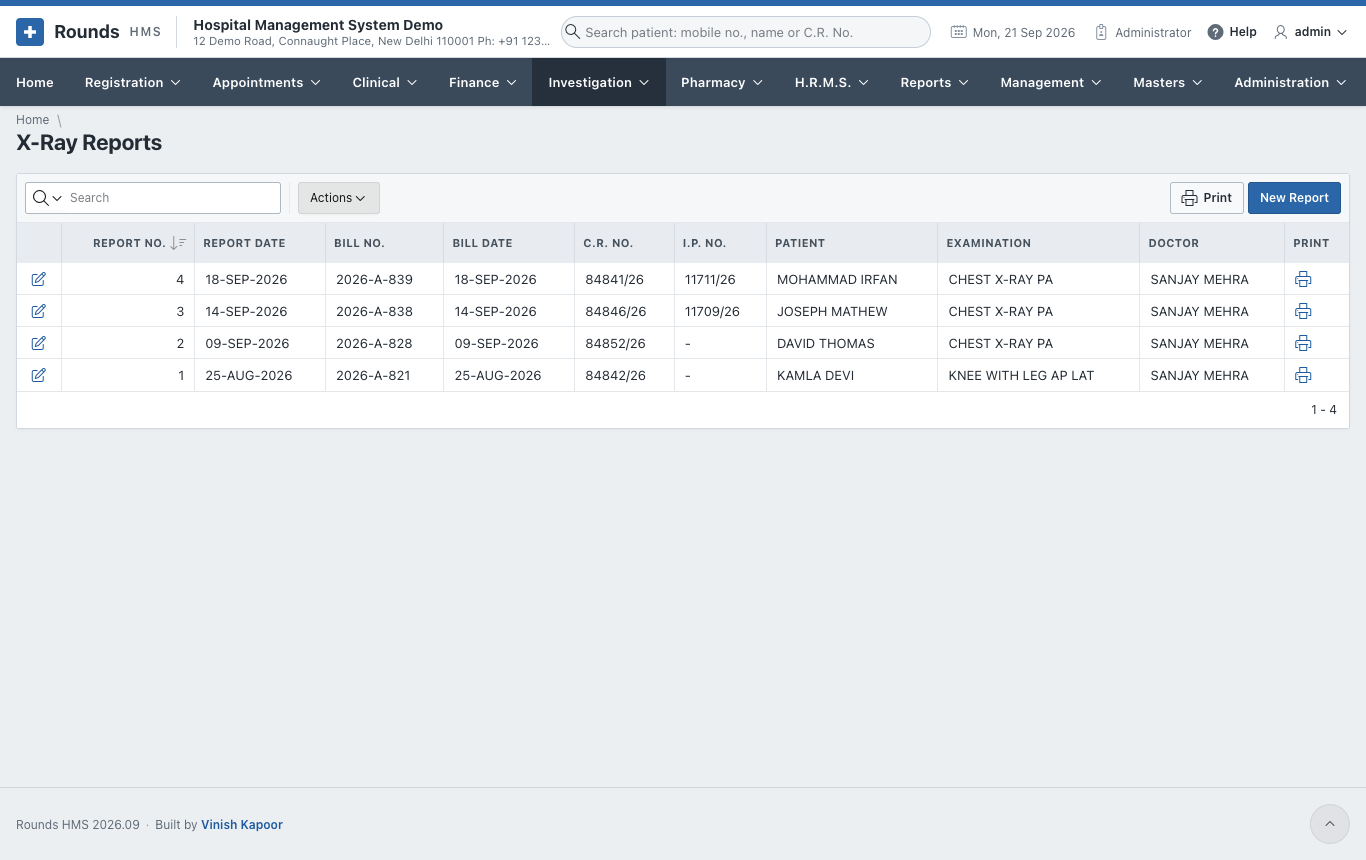
Investigation > X-Ray Reports lists the reports:
Write a report
-
Click New Report:

-
Choose the Cash Bill (with x-ray items), and the Examination on it (a bill may hold several). Leave Report No. empty for the next number.
- Click Create Report. The report opens with the patient, the bill and the examination:
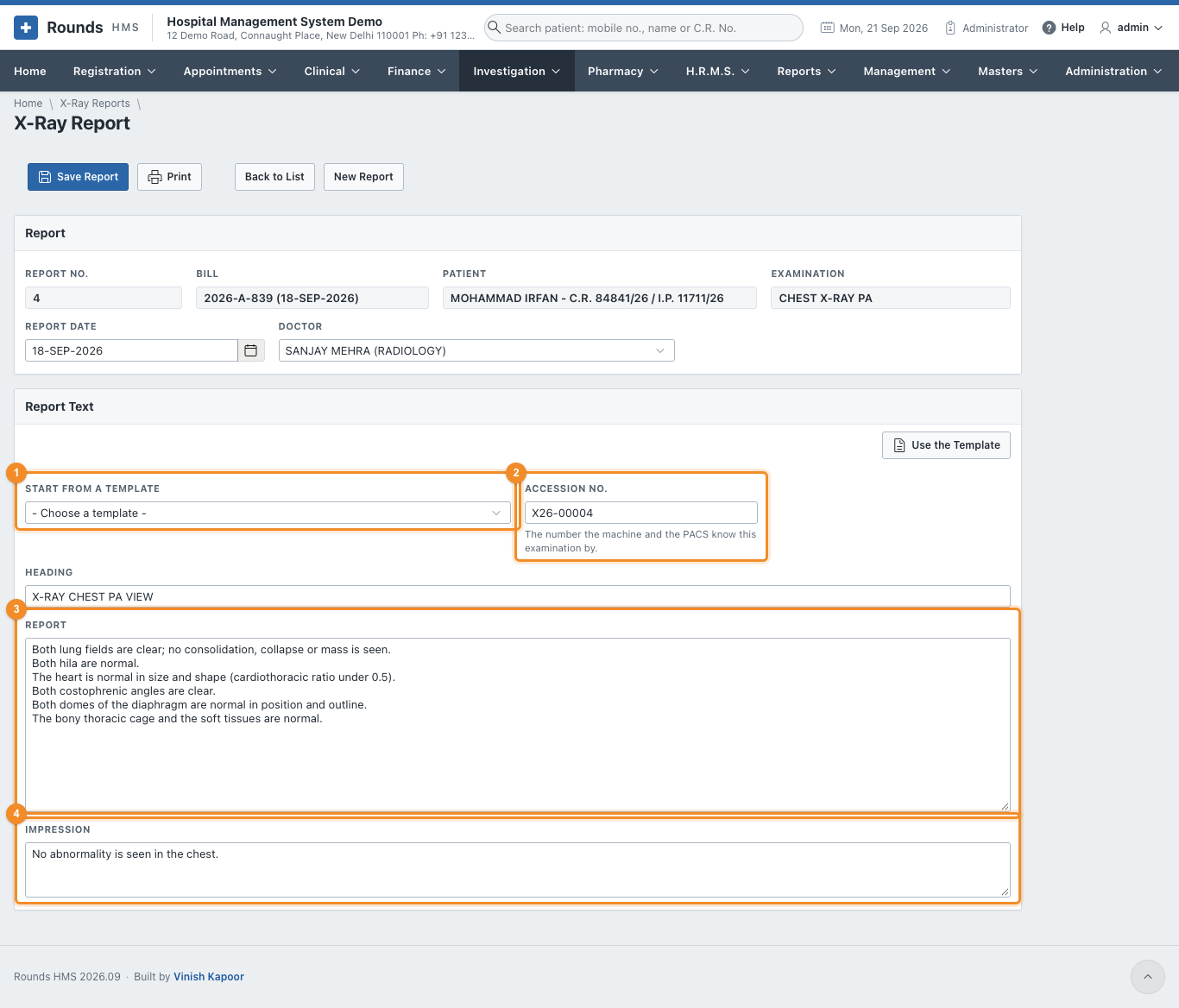
- Report Date and Doctor (the radiologist).
- 1 Start from a Template: choose a template, e.g. Chest PA view - normal, then Use the Template. The heading, findings and impression are filled in. Change what differs.
- 2 Accession No.: the number the X-ray machine and the PACS know this examination by. It is given by itself.
- 3 Report and 4 Impression.
- Click Save Report, then Print. From the print window, WhatsApp tells the patient the report is ready.
- View the Images opens the images in the hospital's PACS viewer, if its address is set in Administration > Hospital Details.
Ultrasound reports
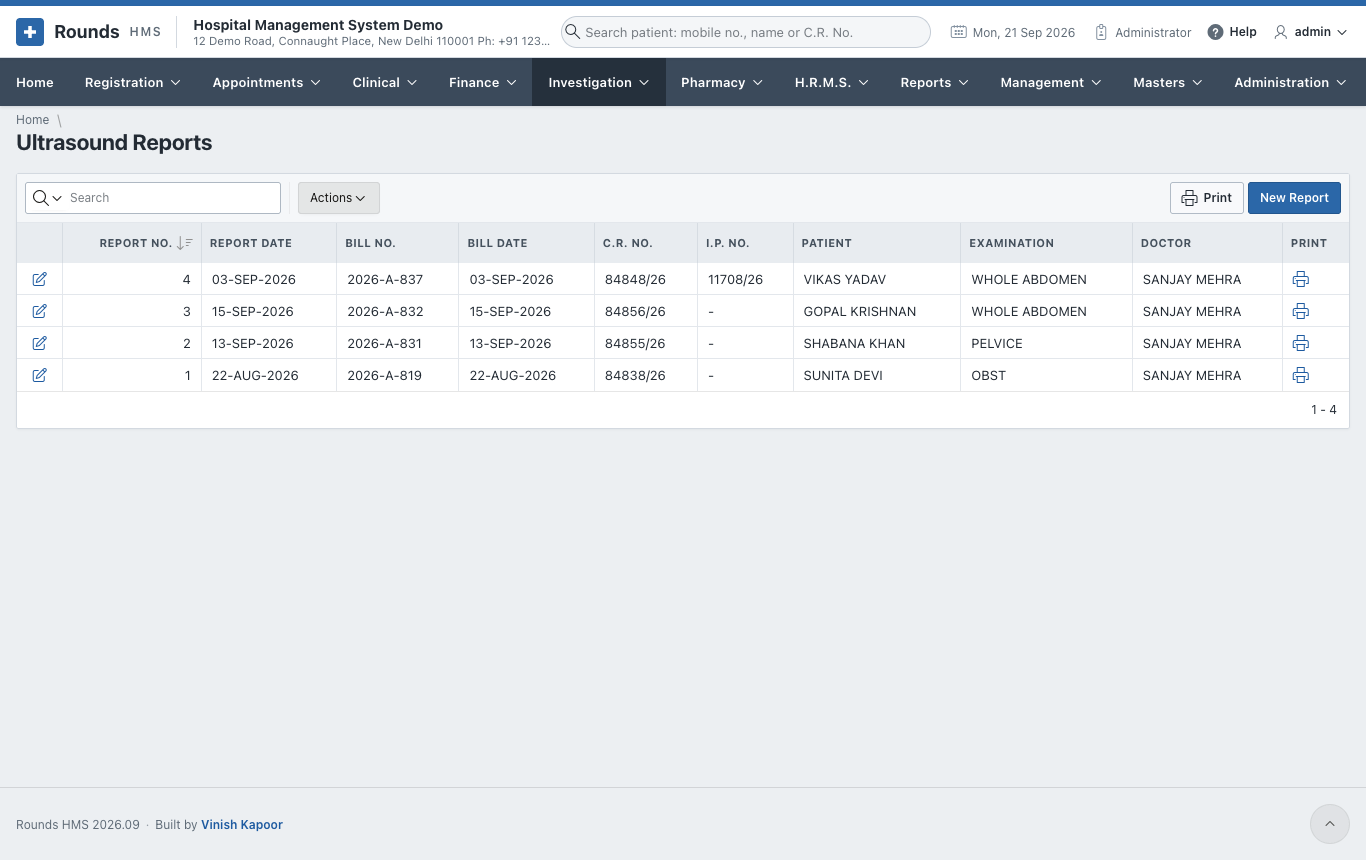
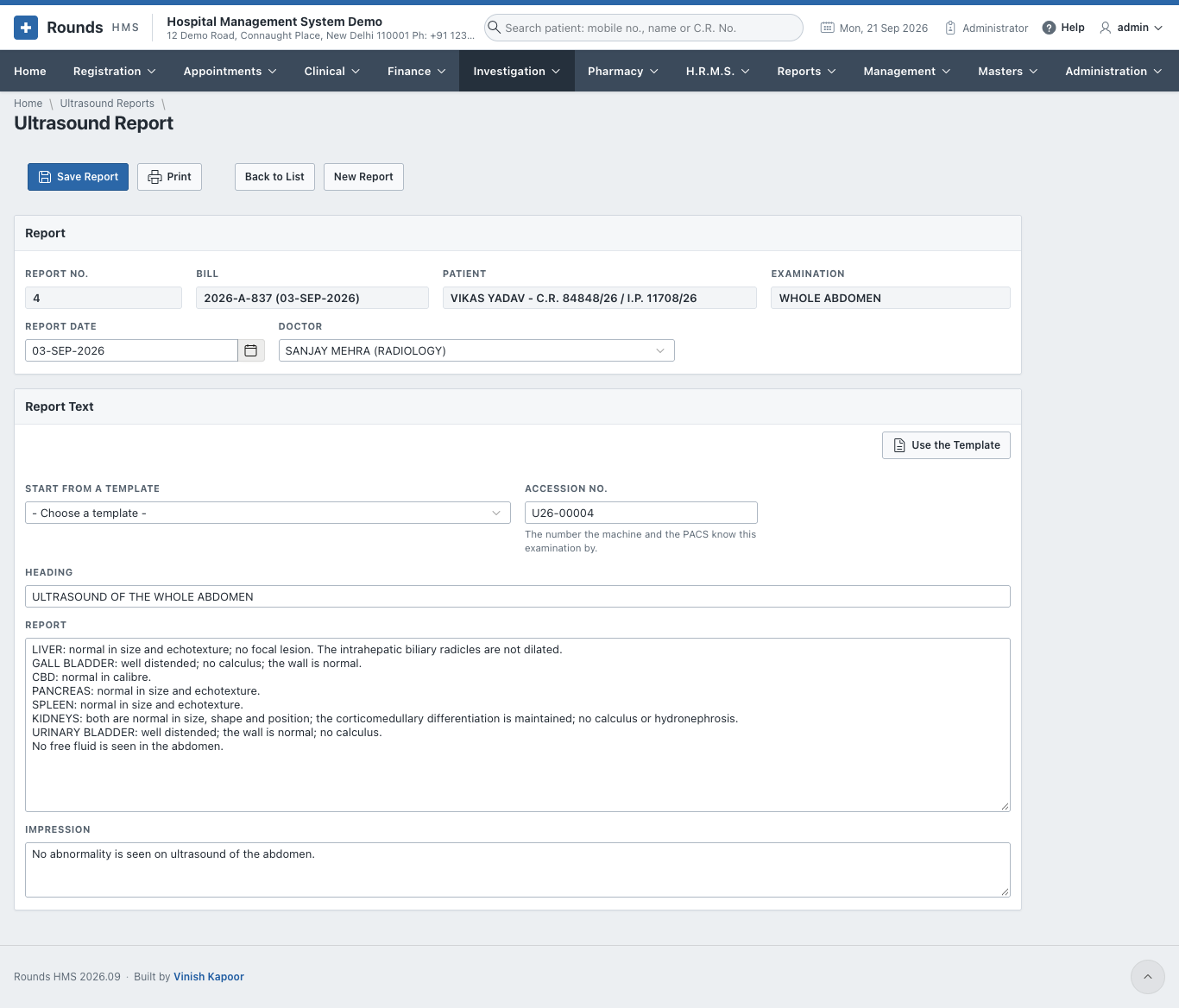
Investigation > Ultrasound Reports works the same way, with the ultrasound items of a bill and the ultrasound templates.
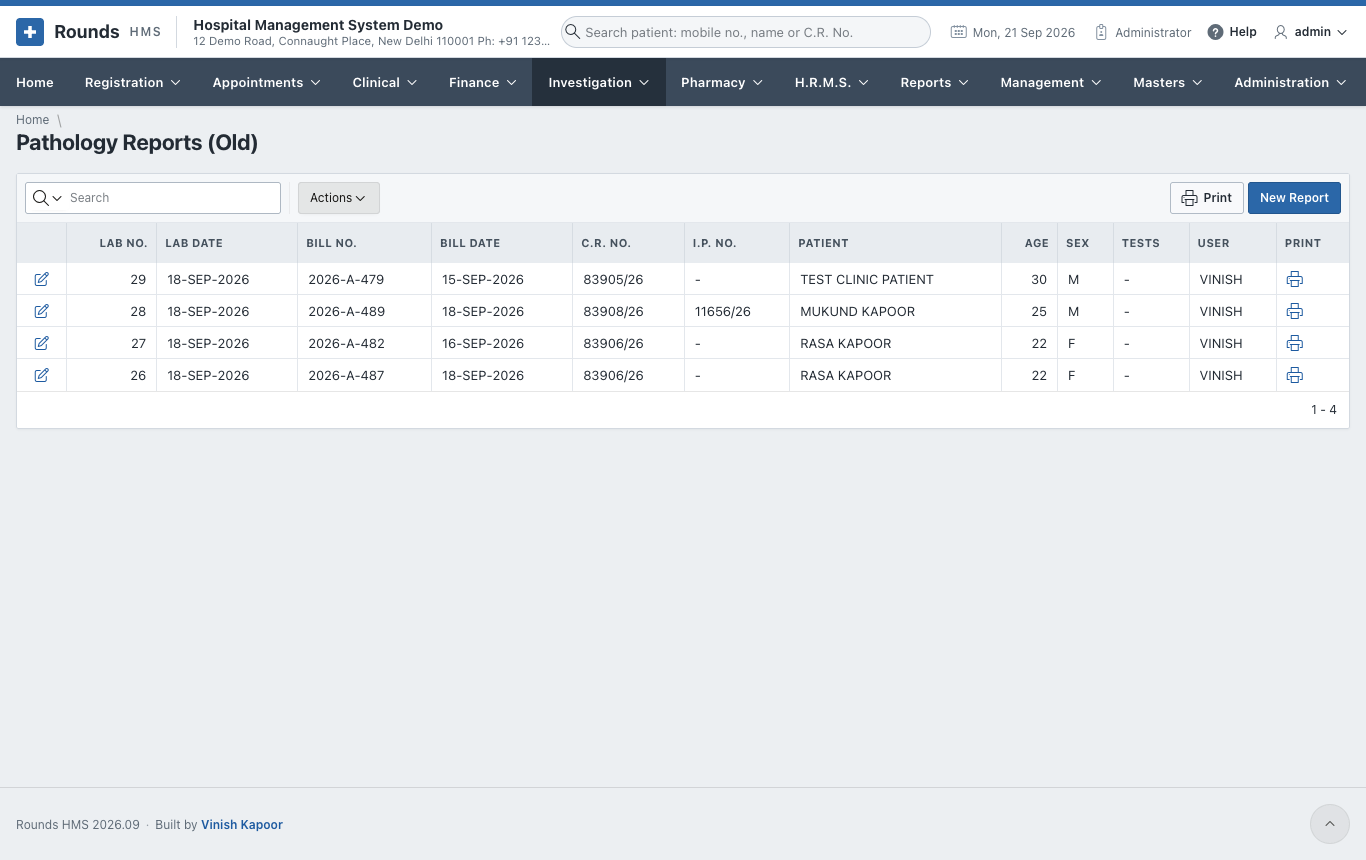
Pathology Reports (Old)
Investigation > Pathology Reports (Old) is the old way of reporting the tests of a bill, from before lab orders. It is kept so that earlier reports can still be opened and printed. Its results are flagged the same way. For every new test, use a lab order.