Getting Started
Sign in
Open the address of Rounds HMS that your administrator gave you, in any web browser (Chrome, Edge, Firefox, Safari) on a computer, a tablet or a phone.
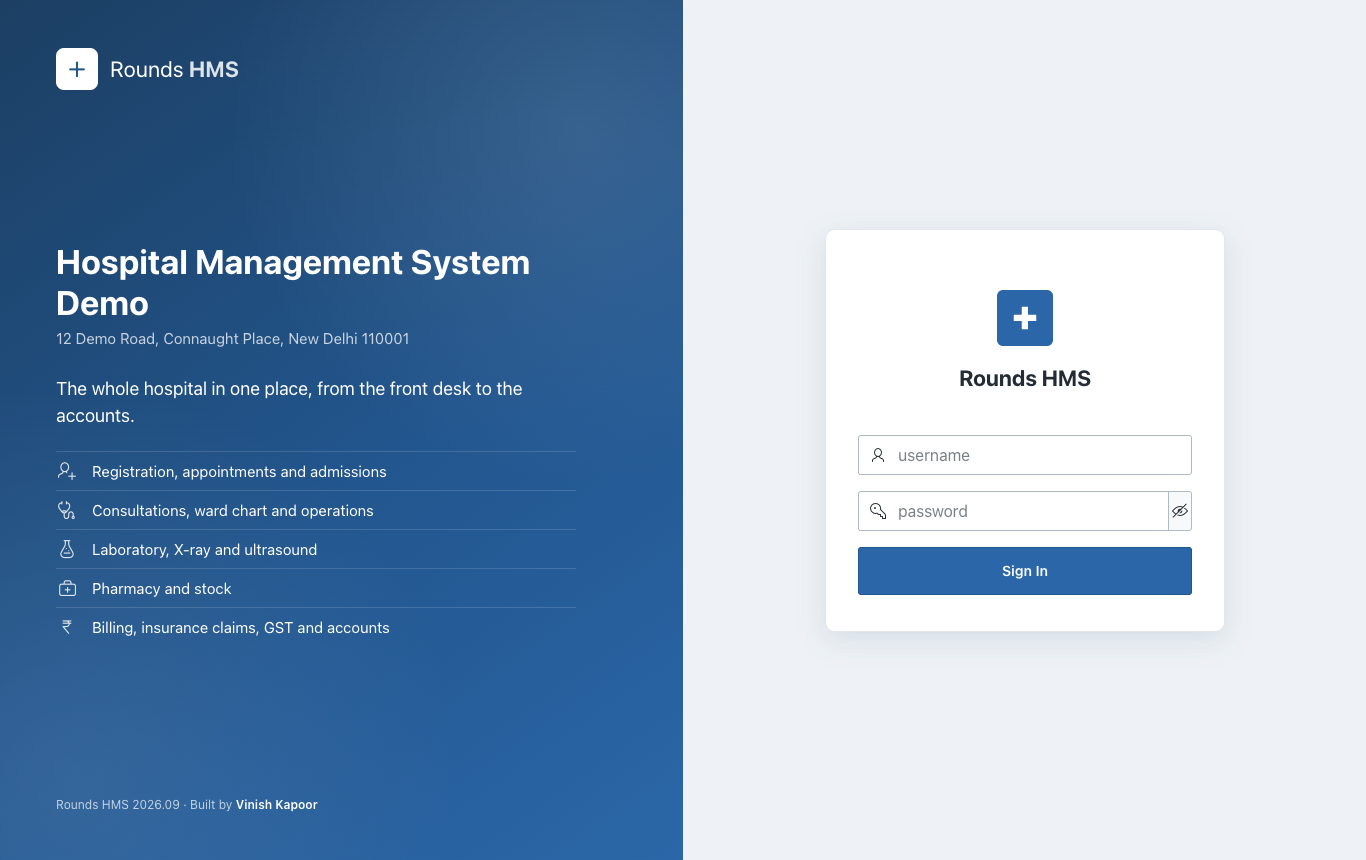
The left half shows your hospital (from Administration > Hospital Details) and what Rounds HMS covers. The sign-in form is on the right:
- Type your username and password. The eye button shows the password as you type.
- Click Sign In.
On a phone, the hospital is shown above the form:
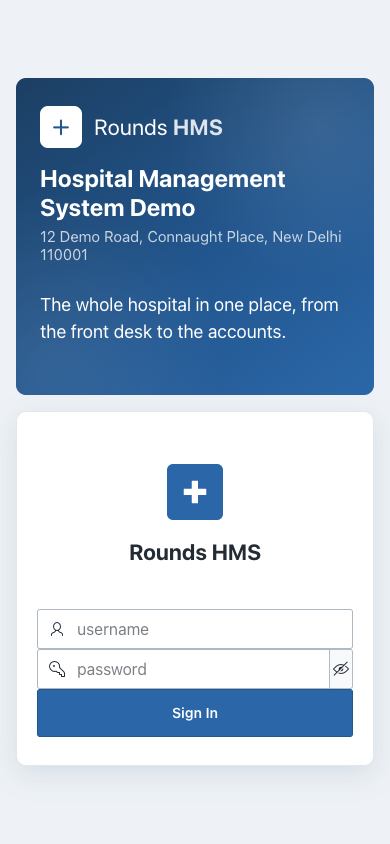
The first time, or after the administrator has reset your password, you are asked to choose your own password (Change Password). After 5 wrong passwords the user is locked. Ask the administrator to unlock it.
The screen
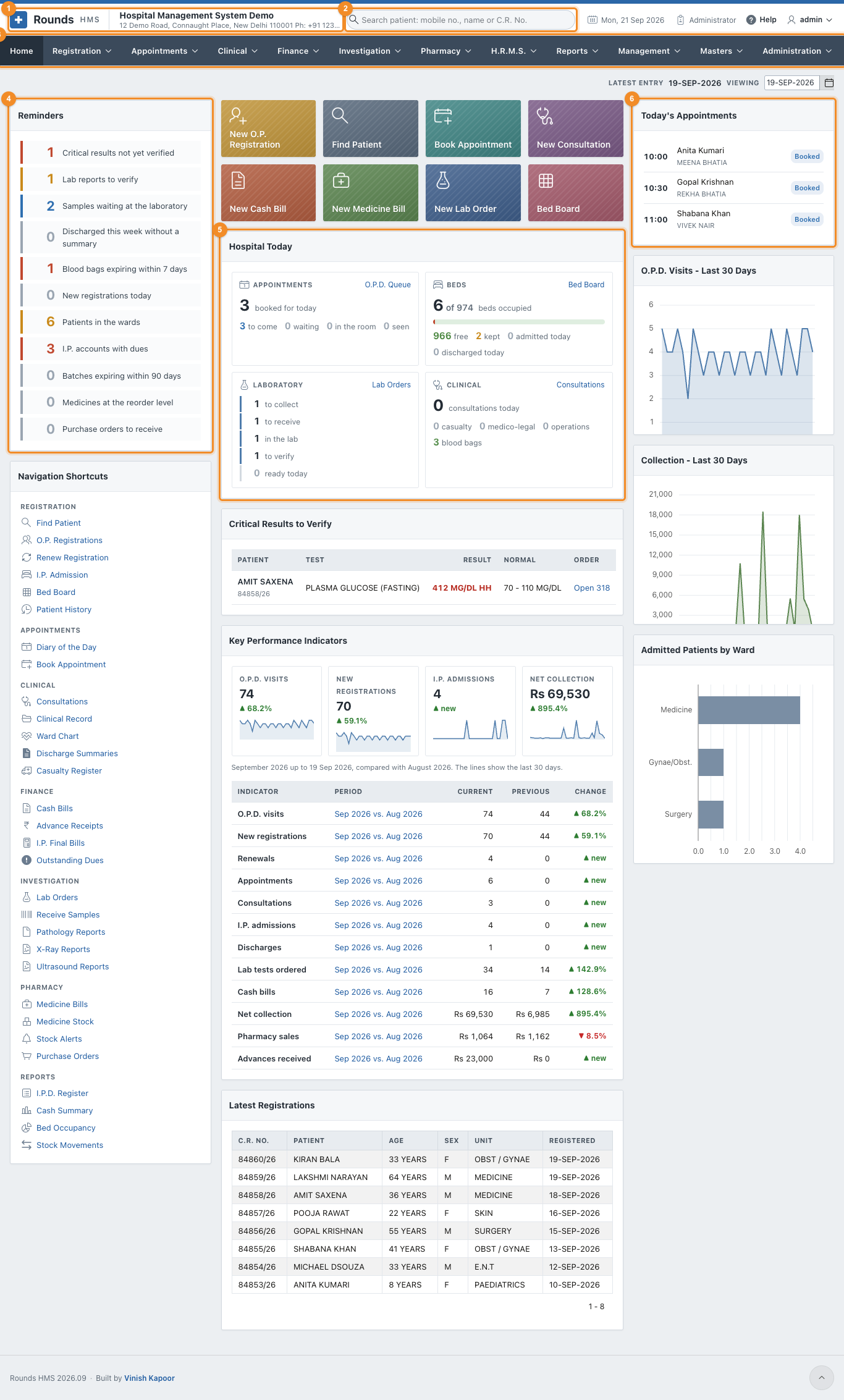
- 1 The header: the Rounds HMS logo (click it to come back Home), and the name and address of the hospital.
-
2 Search patient: type a mobile number, a name, a C.R. No. or an I.P. No. and press Enter, from any page:
- one patient found: their Patient History opens;
- several found (a family, a common name): Find Patient opens with the list.
Next to it: today's date, your role, your cash counter, Help (opens this guide in a new tab) and your user menu. 3. 3 The menu bar: Registration, Appointments, Clinical, Finance, Investigation, Pharmacy, H.R.M.S., Reports, Management, Masters, Administration. You see only the menus your role opens. 4. 4 Reminders: what needs doing, e.g. critical results not verified, samples waiting, discharges without a summary, blood bags about to expire, medicines at the reorder level. Click a line to go to it. Each role sees the reminders of its own work. 5. 5 Hospital Today: the tiles of the most used screens (New O.P. Registration, Find Patient, Book Appointment, New Consultation, New Cash Bill, New Medicine Bill, New Lab Order, Bed Board), then today's appointments, beds, laboratory and clinical work. Appointments counts who is still to come, who is waiting, who is in the room and who has been seen, and O.P.D. Queue beside it opens the queue. 6. 6 Today's Appointments (with the token of each patient who is waiting), O.P.D. Visits and Collection of the last 30 days, and below them the Key Performance Indicators and the Critical Results to Verify.
Viewing (top right of the Home page) shows the Home page of another day.
The user menu
Click your name at the top right:
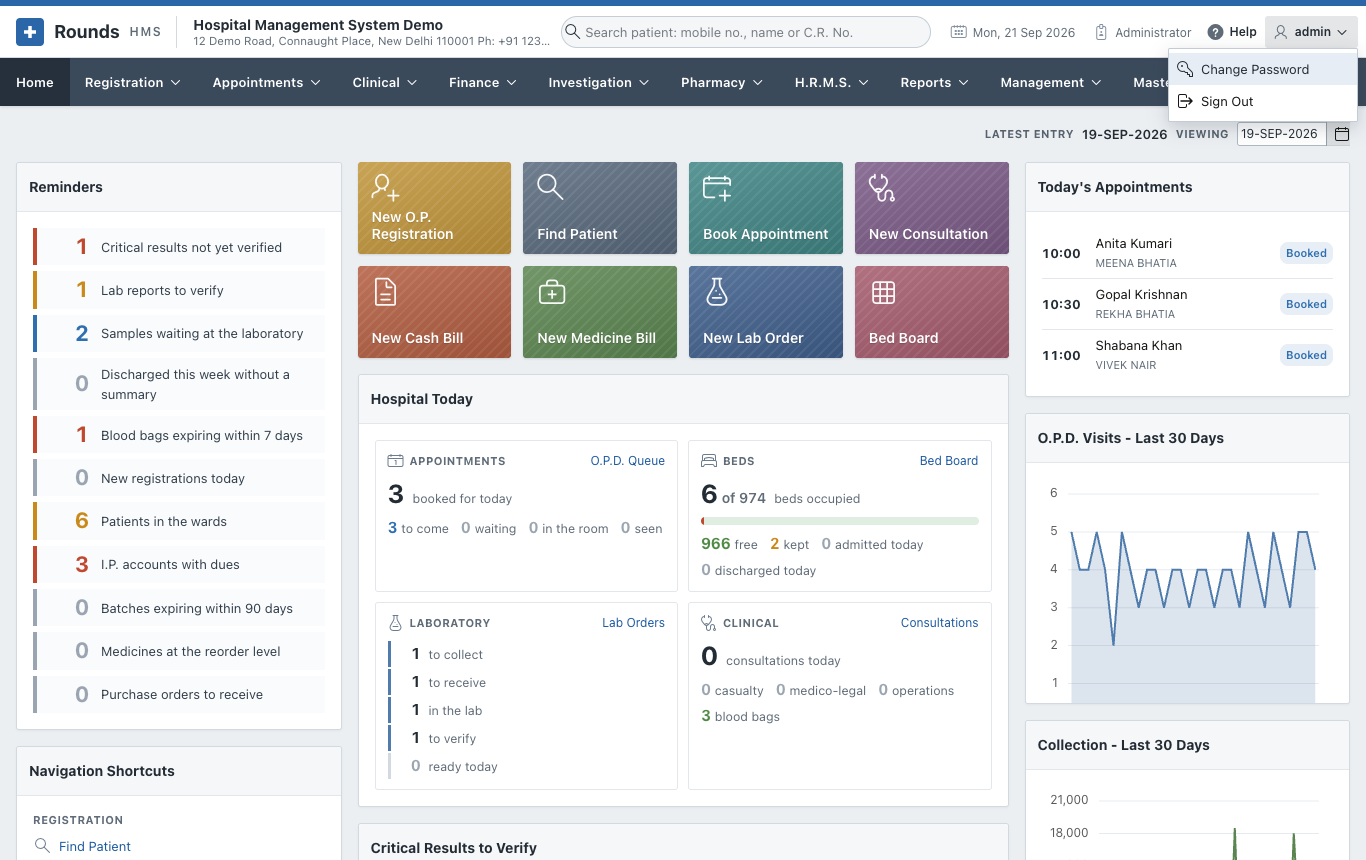
- Change Password;
- Sign Out. Always sign out on a shared computer.
The line at the bottom of every page gives the release of Rounds HMS (e.g. Rounds HMS 2026.09).
How the screens work
- Lists and forms. A menu option in the plural (Cash Bills, O.P. Registrations) opens a list. A pencil opens a row, and a button at the top right adds a new one. An option starting with New opens an empty form.
- Required fields are marked with a red star. A message at the top of the page says what is missing.
- Finding the patient. Every screen that needs a patient has a Mobile No. field: type the number and press Tab. Or search the C.R. No. field with the list button beside it (by name, mobile or number).
- The doctor of a patient is filled in on every screen from the patient's registration. It can always be changed.
- Dates are typed as 18-SEP-2026, or picked from the calendar button.
- Printing. Print shows the document in a window with three buttons: Print (to the printer or a PDF), Share (the PDF, from a phone or tablet) and, where it makes sense, WhatsApp (a message to the patient).
- Lists can be searched, filtered, sorted and downloaded with Actions (see Reports).
What each role sees
| Role | Menus |
|---|---|
| Administrator | everything, with Management, Masters and Administration |
| Reception | Registration, Appointments, Finance |
| Operator | Registration, Appointments, Clinical, Finance, Investigation, Pharmacy, Reports |
| Accountant | Finance, Reports |
| Pharmacist | Pharmacy |
| Laboratory | Investigation |
| Nurse | Clinical |
| Doctor | Registration, Appointments, Clinical, Finance, Investigation, Pharmacy, Reports |
These are the roles supplied. The administrator can change them in Roles. No role supplied opens H.R.M.S.: give it to the role of whoever keeps the staff records (see H.R.M.S.).
Next
- First-time Setup: what to fill in before the first patient.
- Installation: for the person who installs Rounds HMS.