The Laboratory
Lab orders
Investigation > Lab Orders lists the orders. Orders at the top chooses which: open (not ready yet), ready, all ...
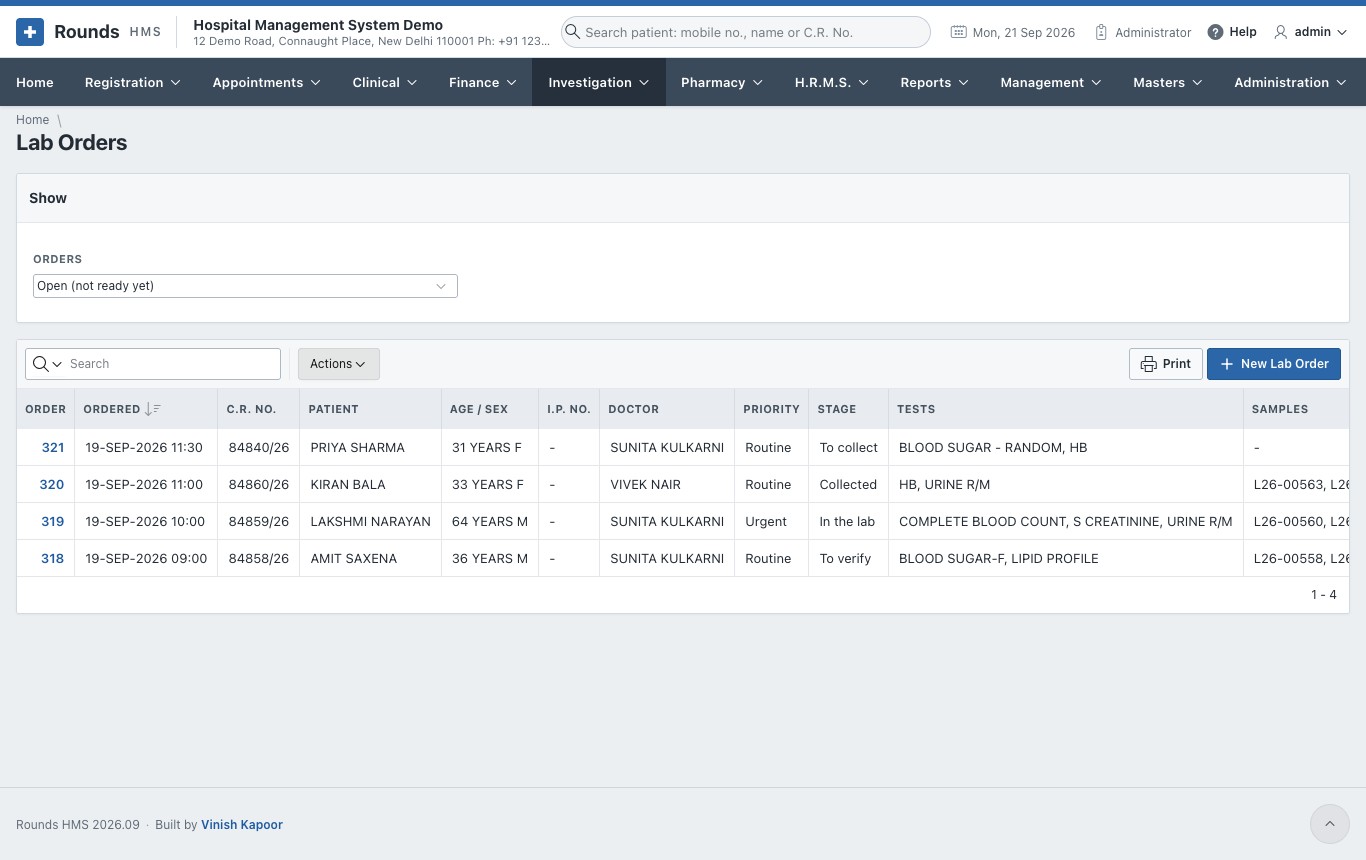
The Stage of each order says what comes next, and the actions of the row do it:
| Stage | Action | What it does |
|---|---|---|
| To collect | Collect | the samples are taken: one tube for each kind of specimen, each with its sample number (e.g. L26-00563) |
| Collected | Received in the lab | the tubes have reached the laboratory |
| In the lab | Results | enter the results |
| To verify | Verify | a pathologist checks and releases the report |
| Ready | Open | see or print the report |
Cancel cancels an order that is not needed any more.
New lab order
Open Investigation > New Lab Order, or the New Lab Order tile on the Home page.
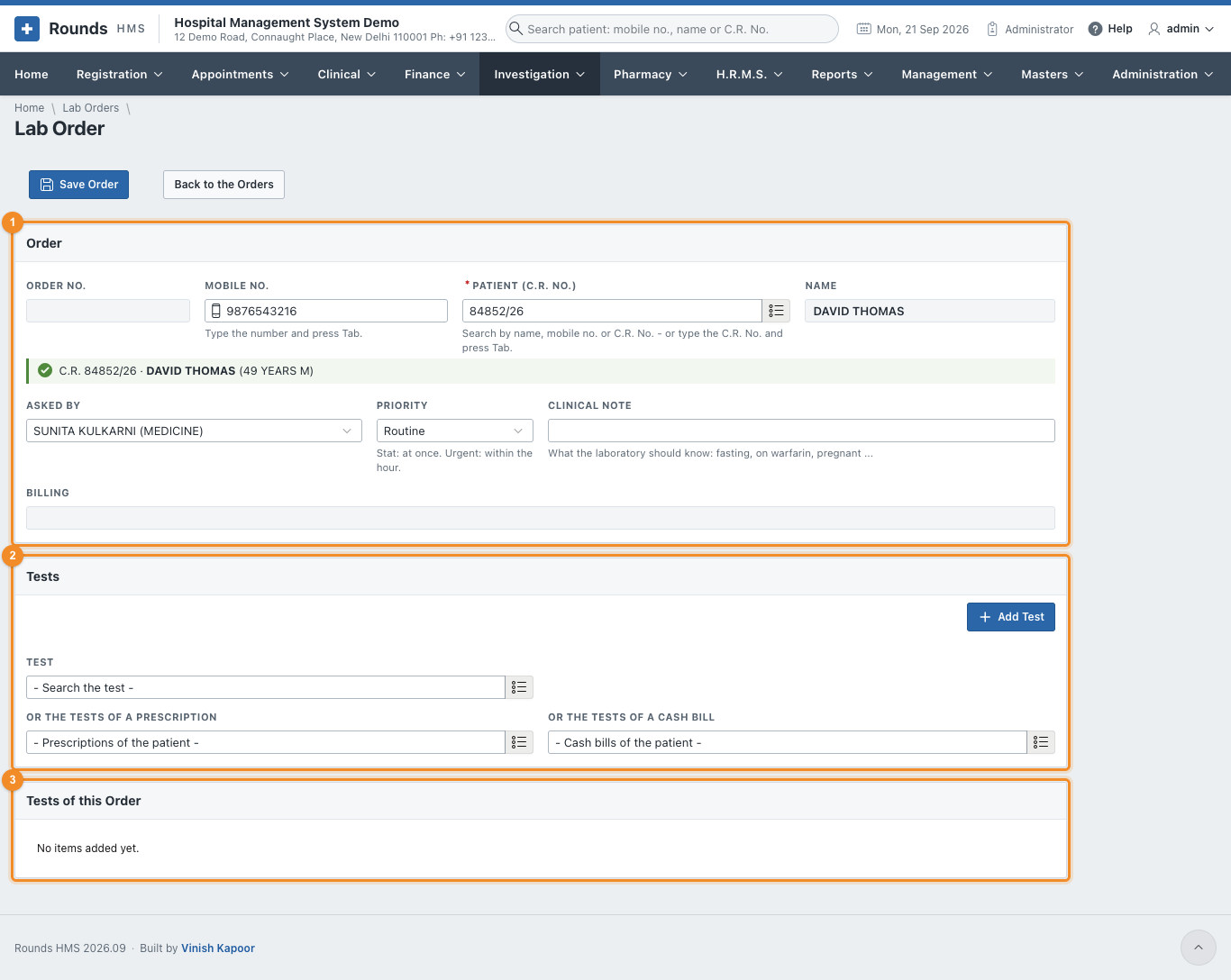
- 1 Order:
- the patient by Mobile No. (press Tab) or Patient (C.R. No.);
- Asked By: the doctor, filled in with the patient's doctor;
- Priority: routine, urgent (within the hour) or stat (at once);
- Clinical Note: what the laboratory should know, e.g. fasting, on warfarin, pregnant.
- 2 Tests, one of three ways:
- choose a Test and add it;
- Or the Tests of a Prescription: all the tests a doctor asked for;
- Or the Tests of a Cash Bill: all the tests already billed.
- 3 Tests of this Order lists them.
- Click Save Order. Then:
- Collect the Samples records the samples;
- Print the Labels prints a barcode label for each tube;
- Bill the Tests opens a cash bill with the tests of the order, when they are not billed yet.
Not billed
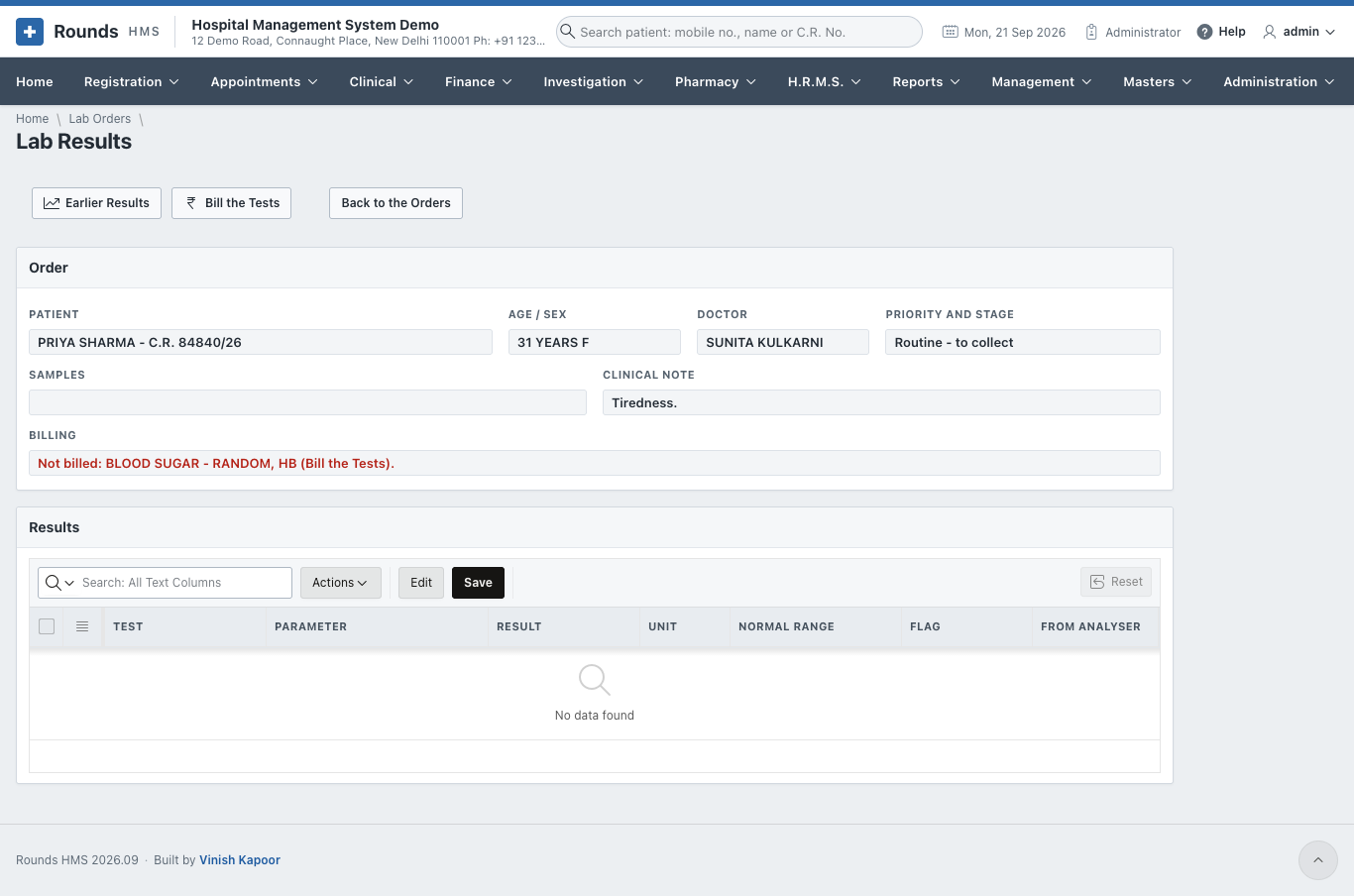
An order whose tests are not on a bill shows Not billed in red. The Lab Orders list has a Not Billed column. Click Bill the Tests: the cash bill opens with those tests, and saving it links the bill to the order.
Receive samples
When the tubes reach the laboratory, open Investigation > Receive Samples:
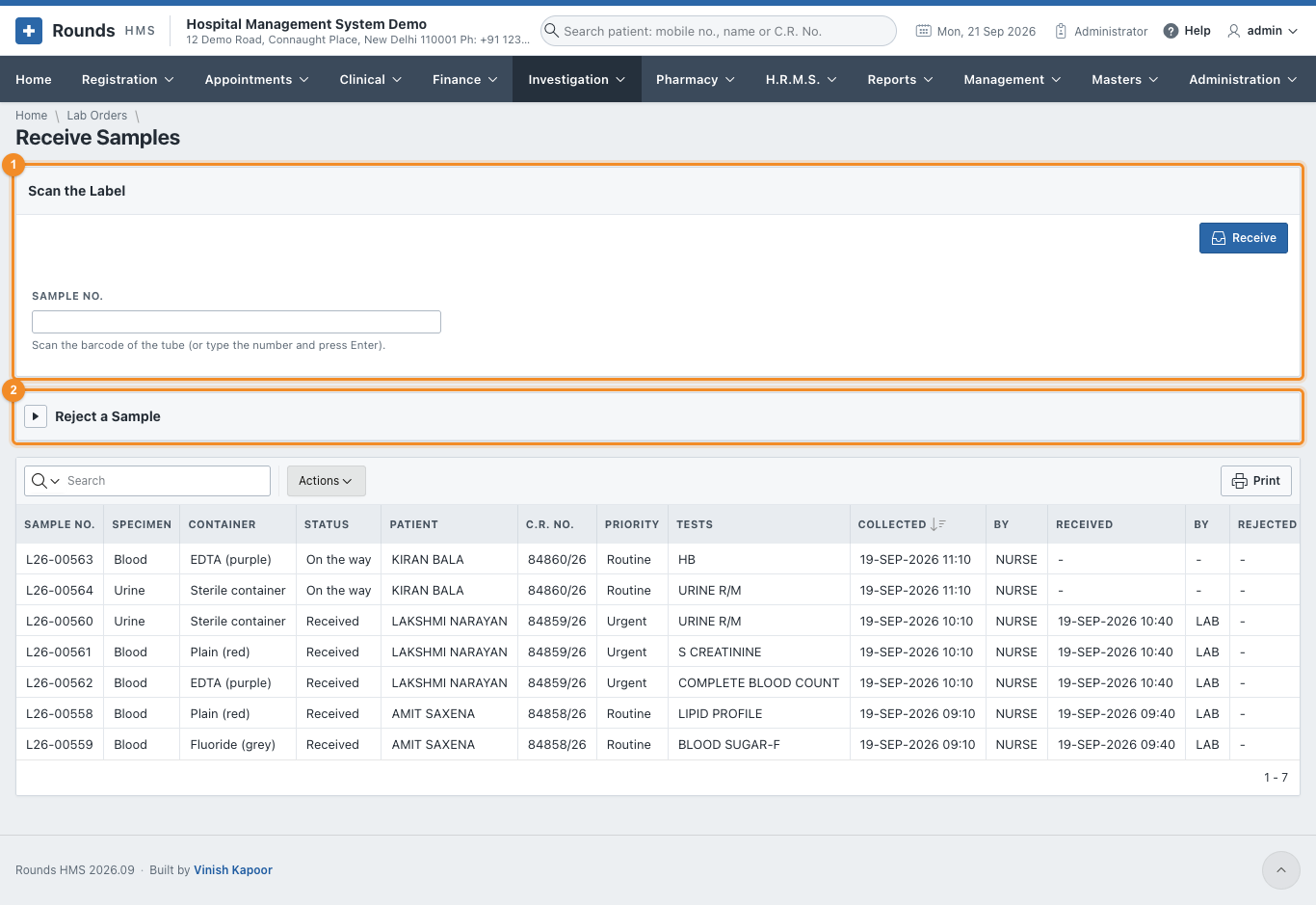
- 1 Scan the Label: scan the barcode of the tube, or type the sample number and press Enter. The sample is received, and the rows for its results are made, each with the normal range for this patient's age and sex.
- 2 Reject a Sample: a clotted, haemolysed or unlabelled tube, or too little. Give the Sample No. and Why, then Reject. Its tests go back to To collect.
- Samples of the Last Days lists the samples and where each one is.
Enter the results
Click Results on the order in the list:
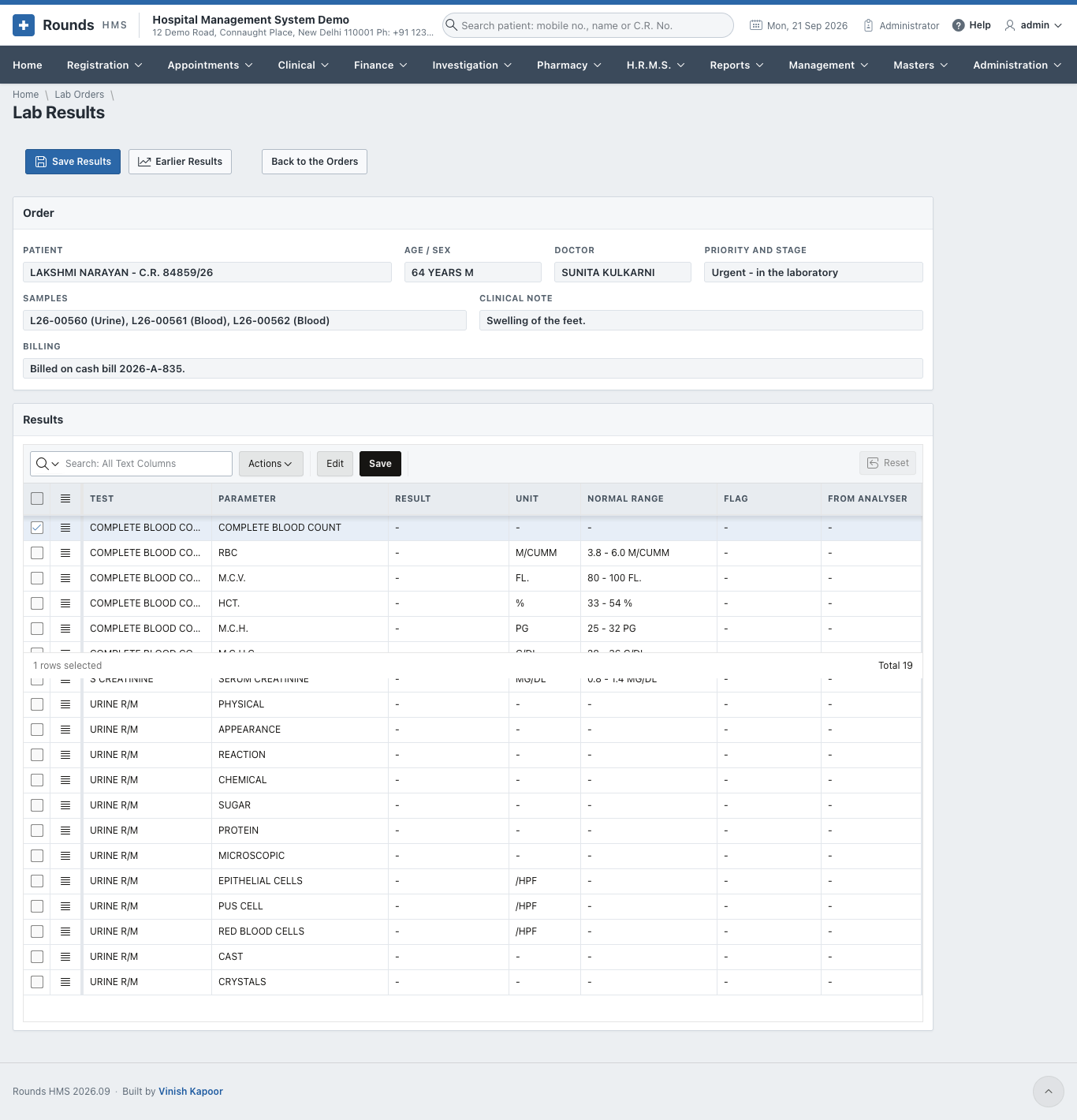
- Type each Result in the grid. Only the Result column can be typed in. Unit and Normal Range are shown beside it.
-
Click Save Results. The Flag of each value is set:
- Normal;
- Low or High;
- Critically low or Critically high, when the value is past the critical limits.
A critical value appears on the Home page until the report is verified. 3. Results sent by an analyser arrive by themselves; From Analyser shows them.
Verify and release
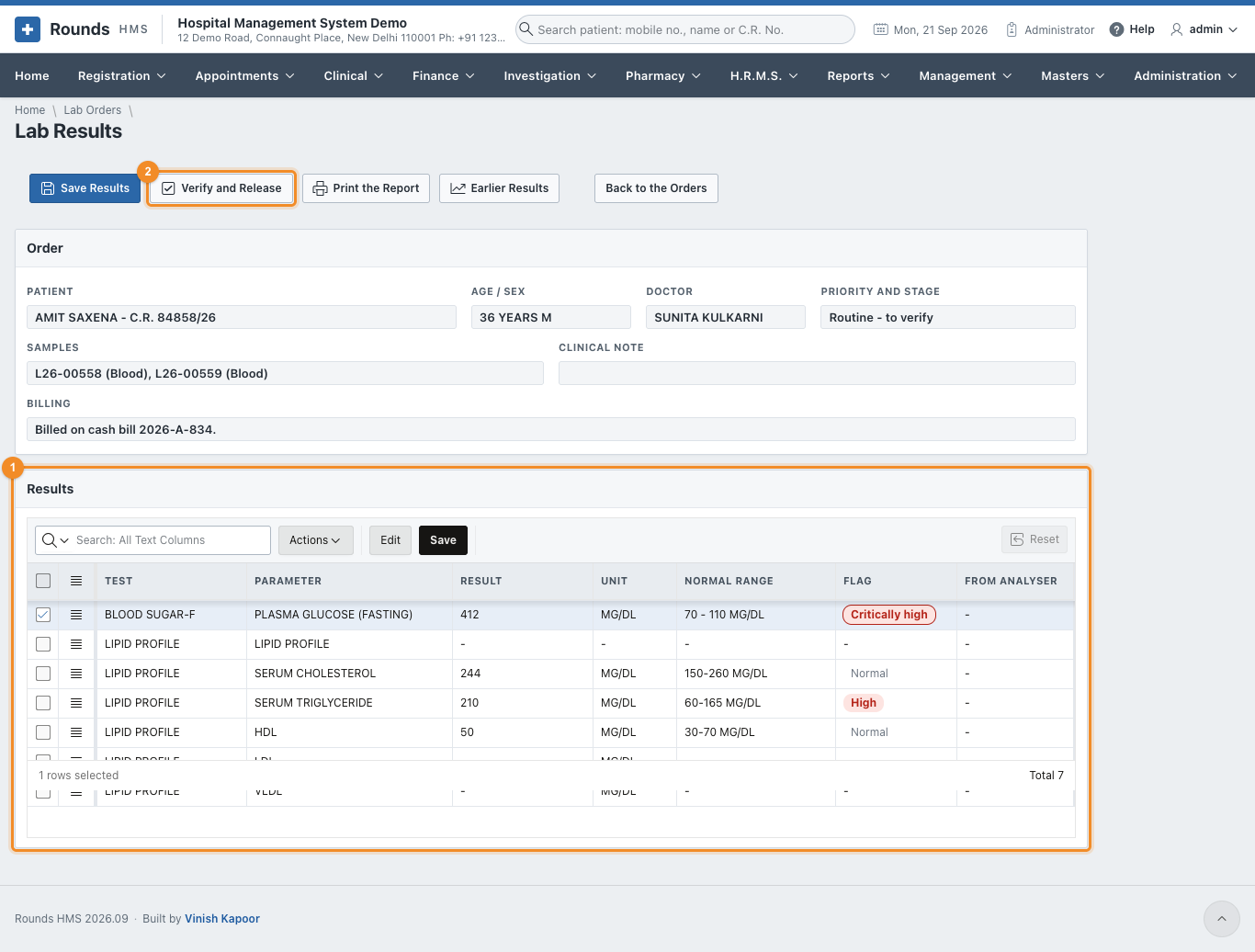
A pathologist opens the order (Verify in the list), checks 1 the results and their flags, and clicks 2 Verify and Release. The report is then ready.
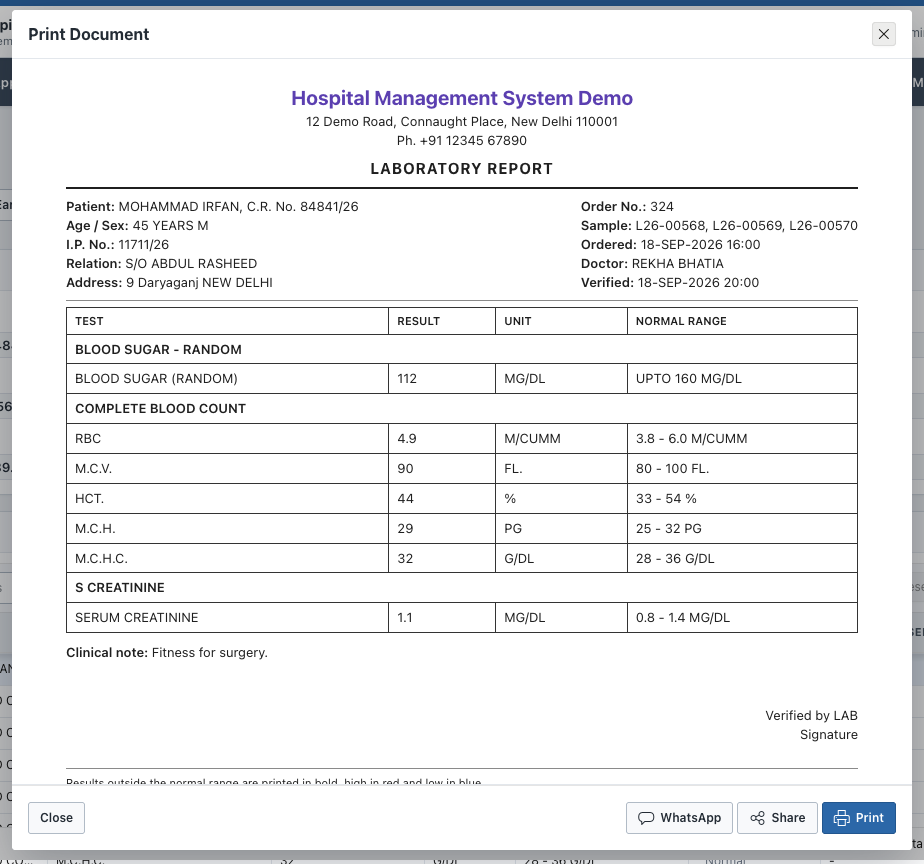
Print the Report shows the report with the abnormal values marked. From the print window, Print, Share (the PDF) or WhatsApp (tells the patient the report is ready):
Results over time
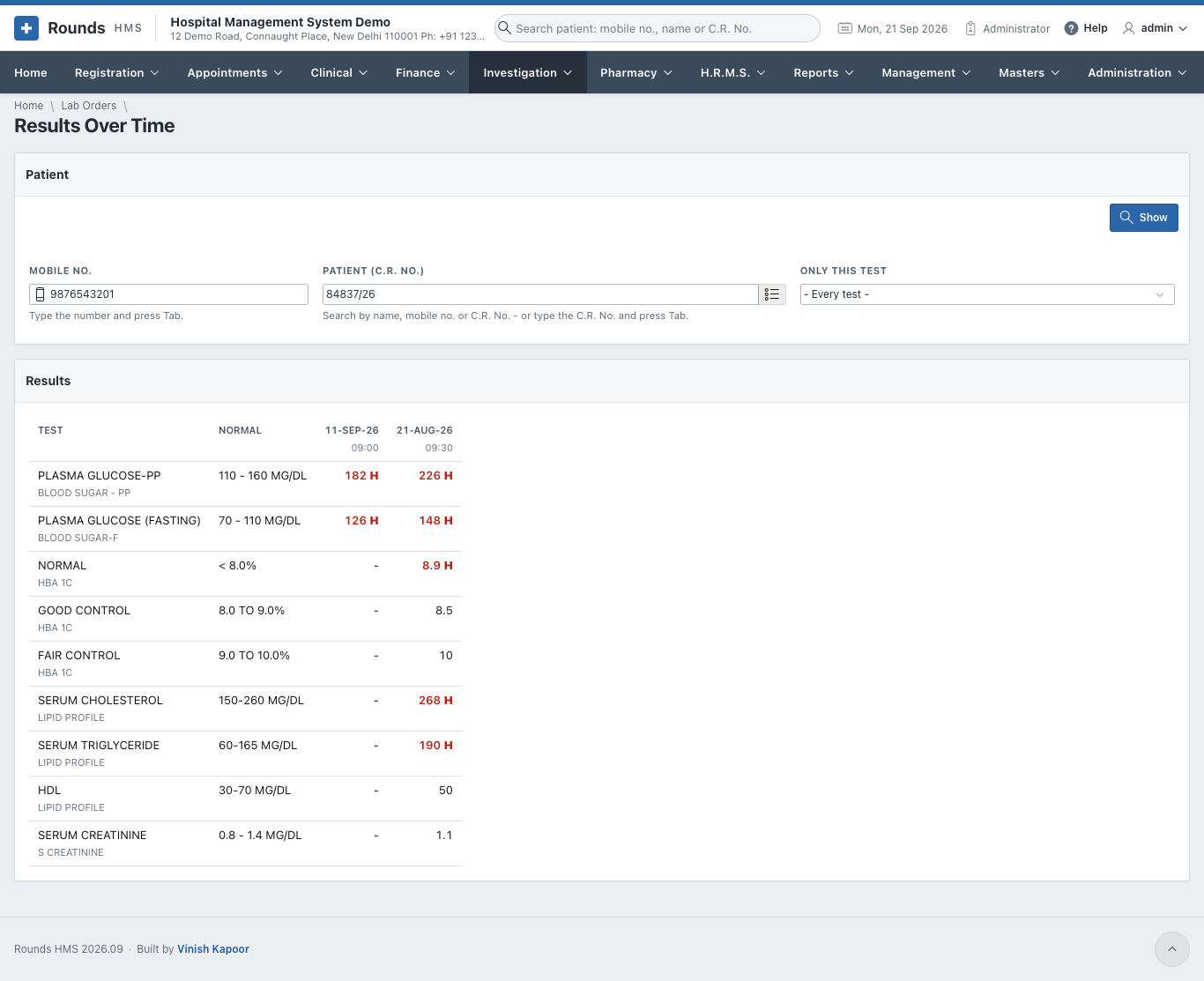
Investigation > Results Over Time (or Earlier Results on an order) shows every result of a patient side by side, date by date, so a trend can be seen: sugar falling, creatinine rising. Choose the patient and, if you like, Only this Test, then Show.
Analyser messages
Analysers can send their results straight into Rounds HMS, with no typing. They send them as HL7 or ASTM messages, to the web address shown on Investigation > Analyser Messages, with the sample number of the tube.
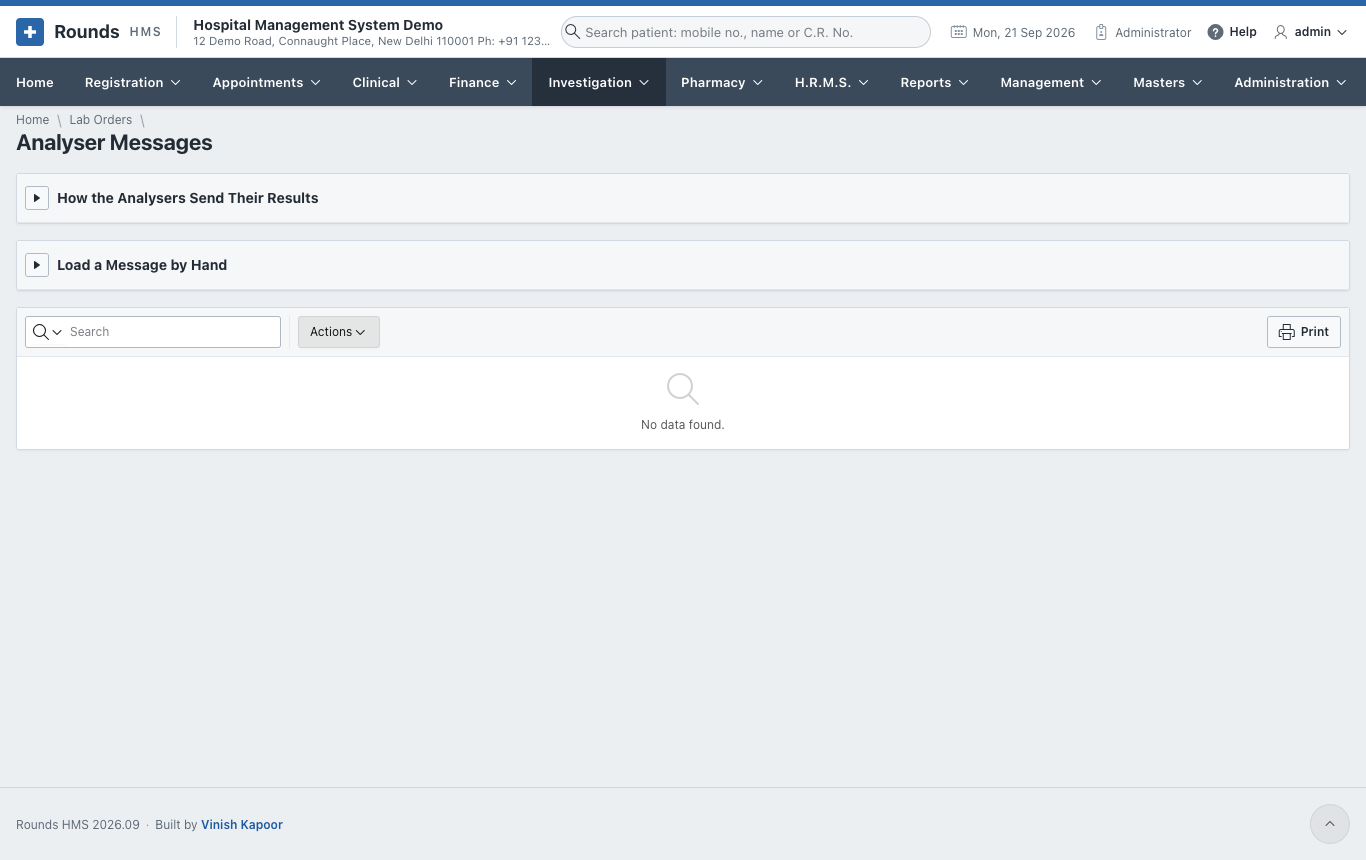
- How the Analysers Send Their Results gives the address and the key. Make a New Key replaces the key, e.g. if it was shared by mistake.
- Load a Message by Hand pastes a message from an analyser that cannot send it. Click Load the Results.
- Messages Received lists every message, and what was done with it.
The codes each analyser uses for its tests are matched to the laboratory's tests in Analyser Codes.