Duty Roster and Attendance
The duty roster says who should be on which shift each day. Attendance records what really happened. Payroll reads the attendance, and approved leave writes both of them, so the three always agree.
Duty Roster
H.R.M.S. > Duty Roster shows one department for one month, one row per person and one square per day.
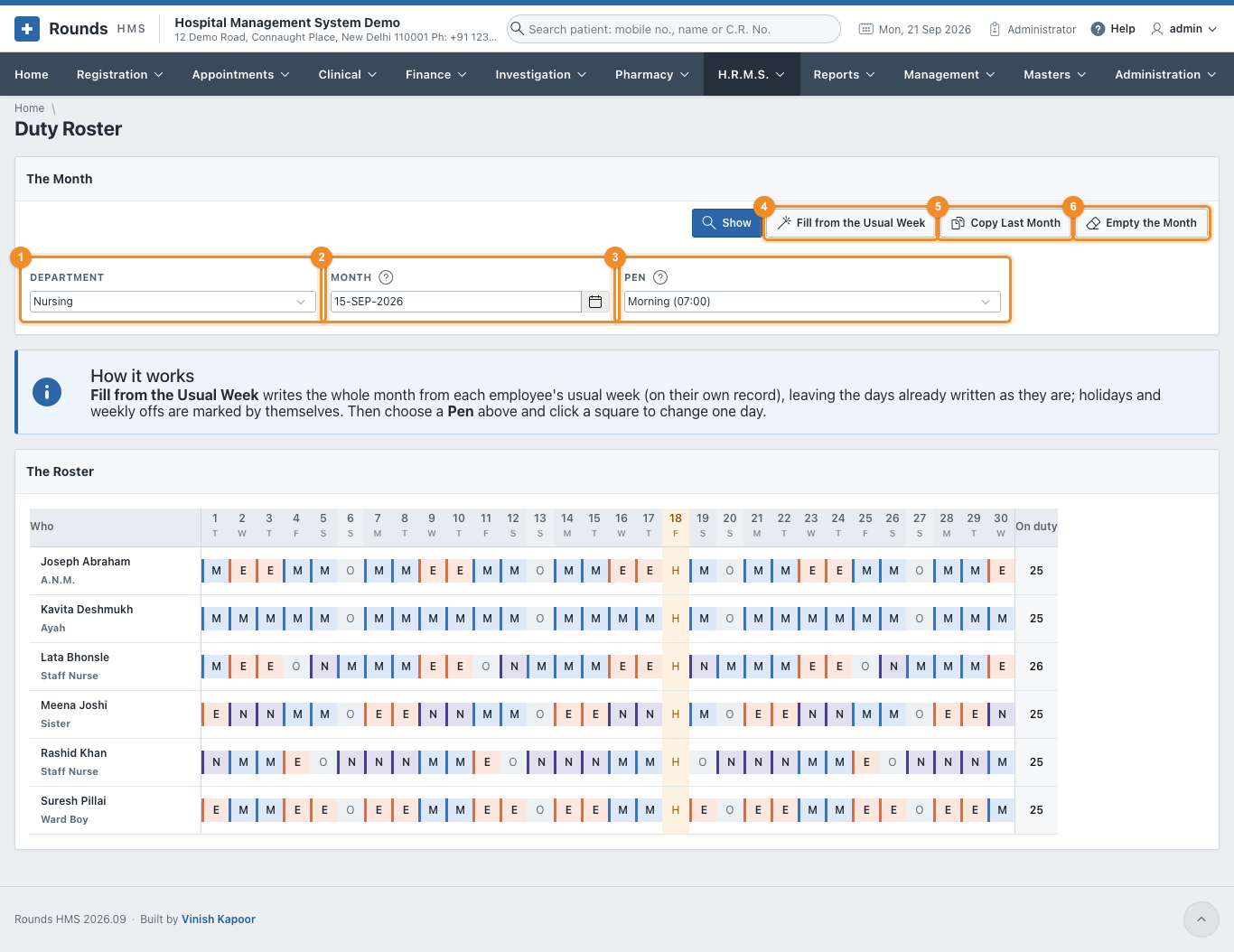
- 1 Department: one department, or every department.
- 2 Month: any day of the month is enough. Click Show.
- 3 Pen: what a click on a square writes. It can be a shift, Off, On leave, or Nothing (takes the day off the roster).
- 4 Fill from the Usual Week writes the whole month from each person's usual week. Days already written are left as they are; holidays are marked by themselves.
- 5 Copy Last Month repeats last month's roster date for date: the 5th as last month's 5th. This month's holidays are marked by themselves, and a day that was a holiday last month is left empty, so Fill from the Usual Week can fill it afterwards.
- 6 Empty the Month takes every day of the month off the roster, after asking.
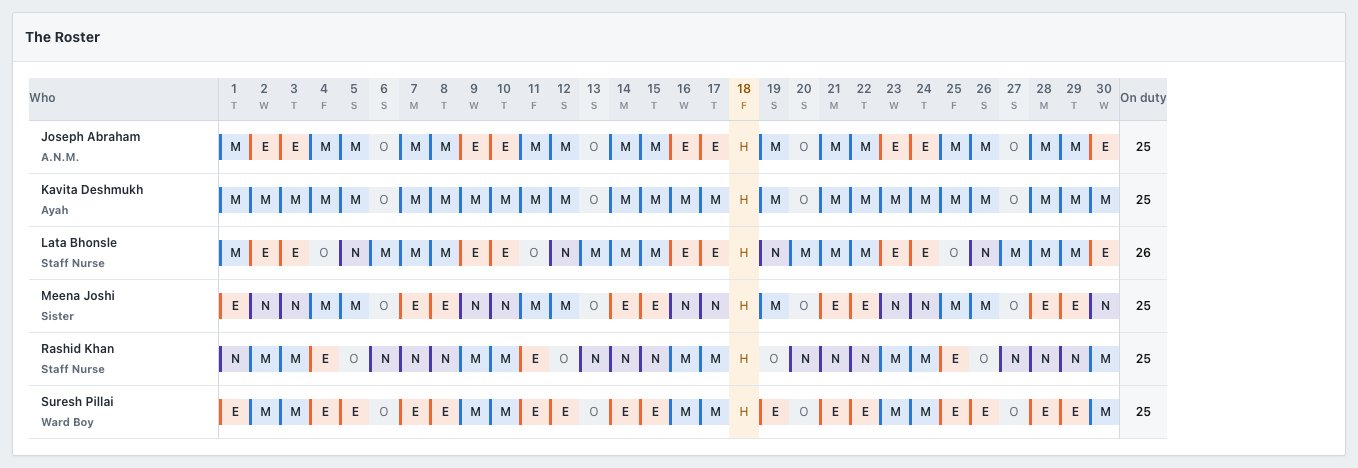
Each square carries the letter of its shift in the shift's colour (M morning, E evening, N night, G general); O is a weekly off, L leave and H a holiday. The holiday's column is shaded, and On duty counts the days each person works.
Making the roster of a month
- Choose the department and the month, and click Show.
- Click Fill from the Usual Week. The month is written in one go.
- To change a day, choose the Pen (e.g. Night (23:00)) and click the square. The page comes back with that day written. Keep clicking squares with the same pen for as many days as needed.
Swapping two people
Choose the first person's shift as the pen and click the second person's square, then the other way round.
Attendance
H.R.M.S. > Attendance is one day for everybody.
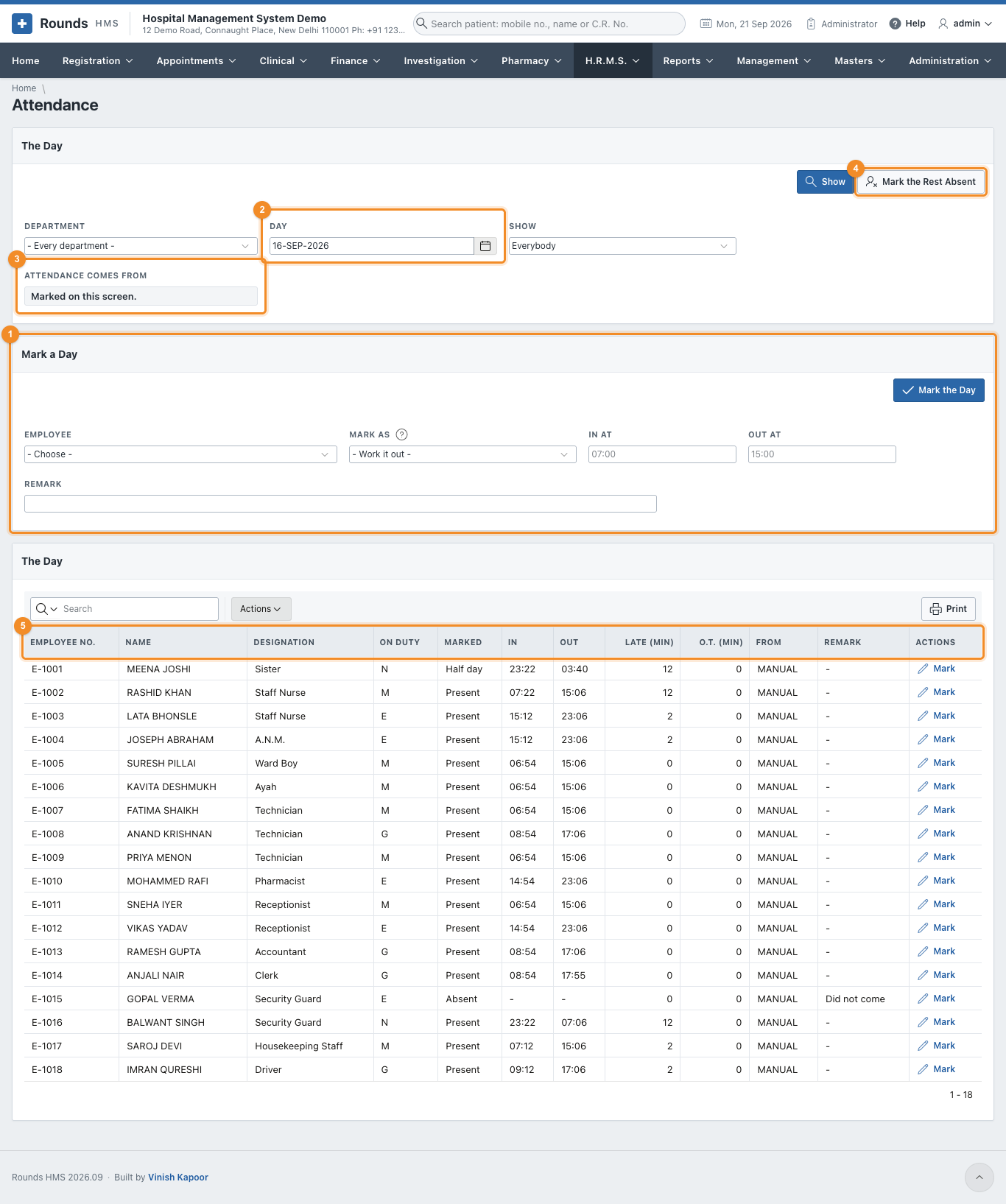
- 1 Mark a Day: marks one person (below).
- 2 Day, with the Department and Show (everybody, only those not marked yet, or only those marked). Click Show.
- 3 Attendance Comes From tells you how this department keeps attendance (see Attendance Settings).
- 4 Mark the Rest Absent marks everyone not yet marked on this day as absent, after asking. Use it at the end of the day, once the people who came have been marked.
- 5 The Day: everybody with their duty from the roster (On Duty), what they are marked as, the times, the minutes late and the overtime. Mark on a row puts that person into Mark a Day.
Mark a day
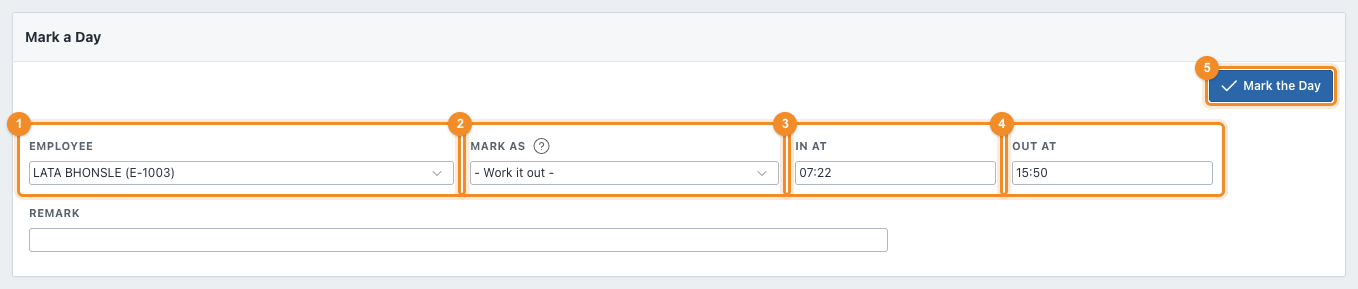
- 1 Employee.
- 2 Mark as: leave it at Work it out and give the times. Or choose Present, Absent, Half day, On leave, Weekly off, Holiday or On duty outside yourself.
- 3 In at and 4 Out at, e.g. 07:22 and 15:50.
- 5 Mark the Day. The list refreshes and the form empties for the next person.
When it is left to work out, the day is judged against the person's shift:
| Worked out | How |
|---|---|
| Late | minutes past the start of the shift, beyond the grace |
| Present or Half day | the time between in and out, against a full day and a half day. Less than a half day is Absent |
| Overtime | minutes past the end of the shift, beyond what the settings allow, if overtime is counted |
In the example, someone on the morning shift (07:00 to 15:00, ten minutes' grace) who comes at 07:22 and leaves at 15:50 is present, 12 minutes late, with overtime counted after the end of the shift.
A day marked again replaces what was there. After A Day Stays Open for (days) in the settings, a day can no longer be changed.
Attendance of the Month
H.R.M.S. > Attendance of the Month is the muster roll: a department for a month, one letter per person per day.
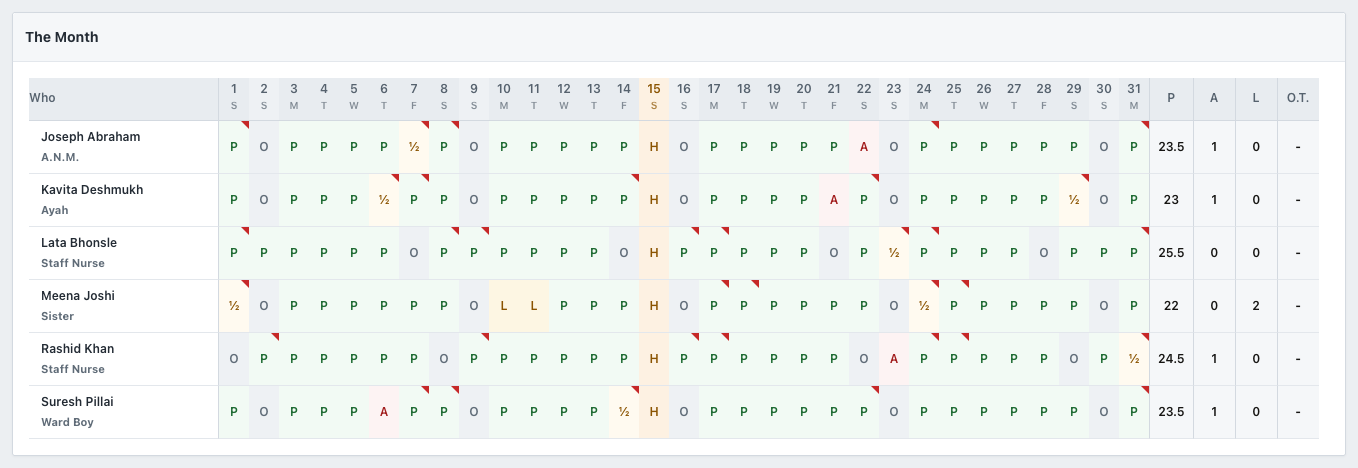
| Letter | Means |
|---|---|
| P | present |
| ½ | half day |
| A | absent |
| L | on leave |
| O | weekly off |
| H | holiday |
| D | on duty outside |
A square with a red corner was a late arrival. Rest the pointer on a square to see the times. At the right, P counts the days present (a half day is ½), then A absent, L on leave and the overtime of the month.
Load from the Machine
H.R.M.S. > Load from the Machine reads the file the attendance machine at the door writes. It is needed only when attendance comes from a machine.
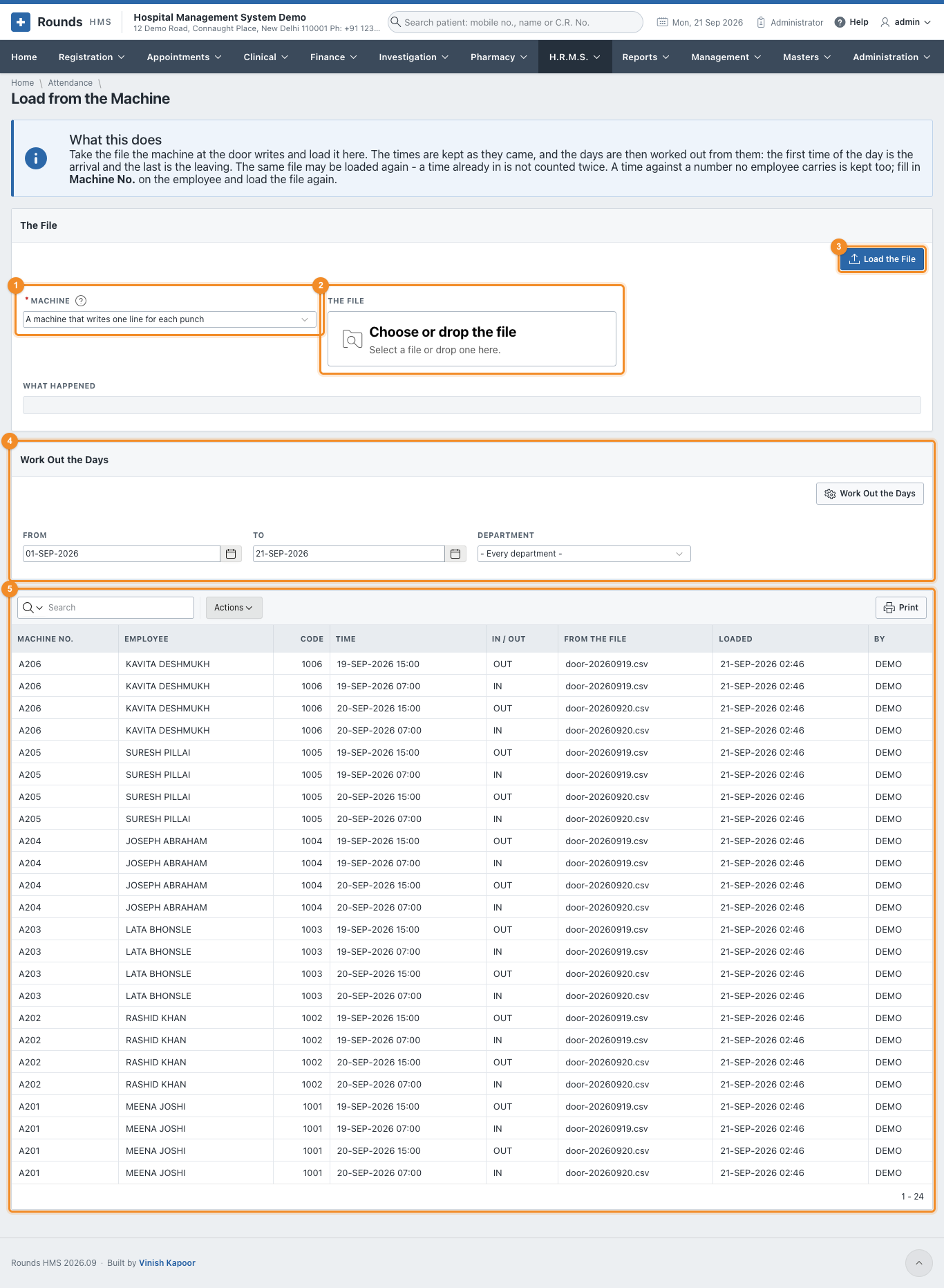
- 1 Machine: how its file is read is set in Attendance Machines.
- 2 The File: choose the file the machine wrote.
- 3 Load the File. What Happened says how many times were read, how many were already in, and how many lines could not be read.
- 4 Work Out the Days: for a period and a department, turns the times into attendance. The first time of a day is the arrival and the last is the leaving, unless the file says which is which.
- 5 The Times Last Loaded shows the times as they came from the file.
The same file can be loaded twice: a time already in is not counted again. A time against a number no employee carries is kept too. Fill in Machine No. on that employee and click Work Out the Days again.