Buying Medicines
Medicine purchase orders
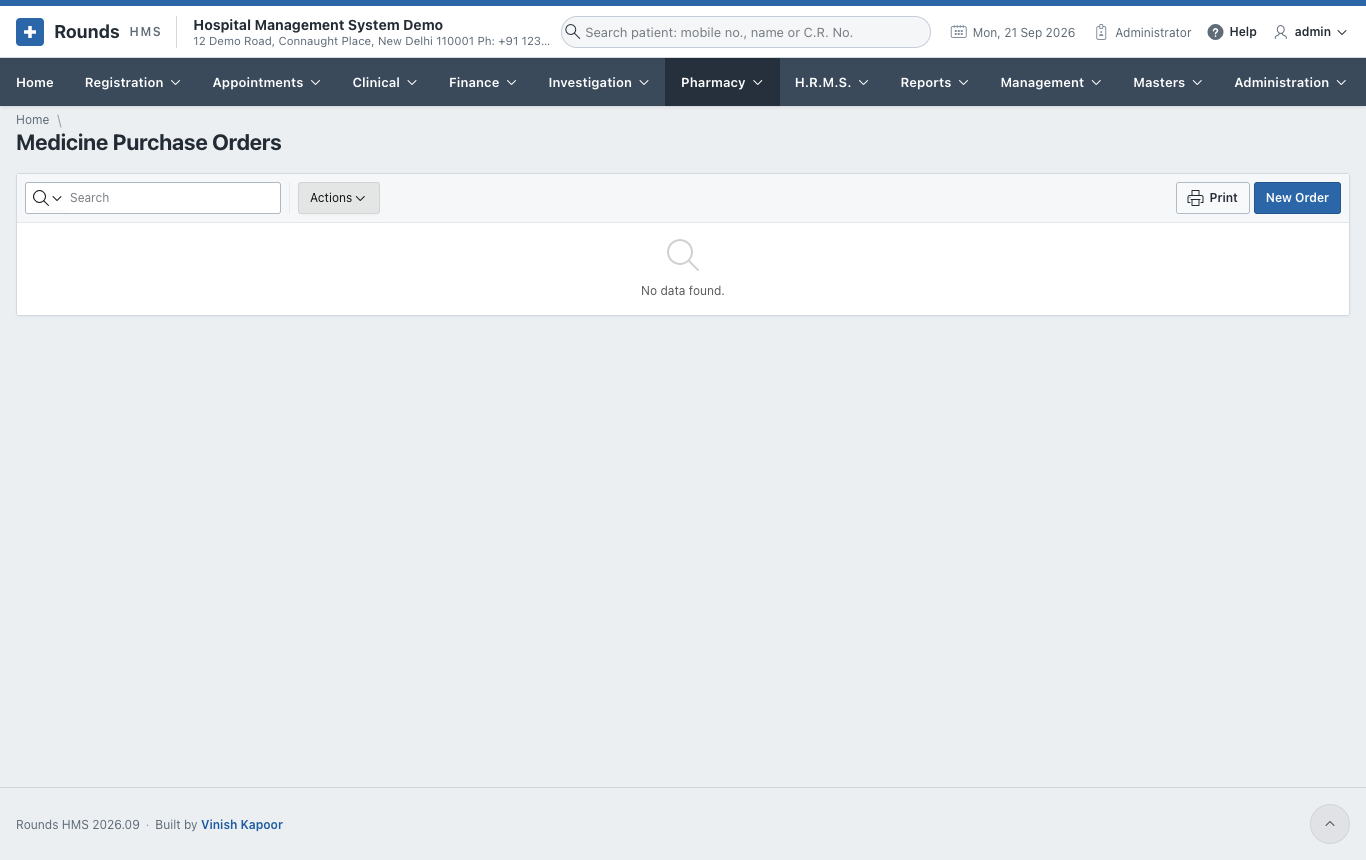
Pharmacy > Medicine Purchase Orders lists the orders sent to suppliers. New Order:
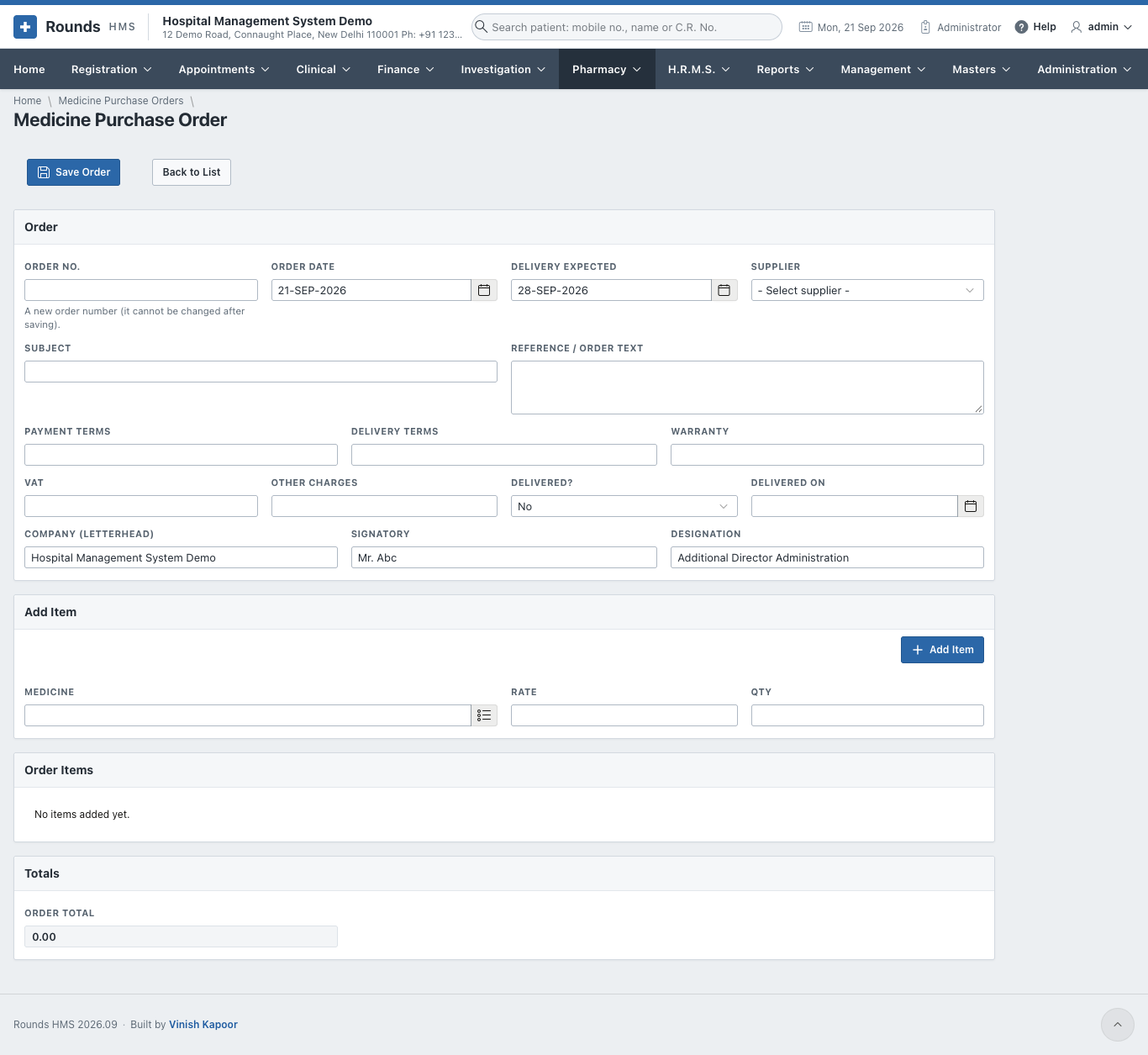
- Order:
- a new Order No. (it cannot be changed after saving), the Order Date and Delivery Expected;
- the Supplier, a Subject and the Reference / Order Text;
- the Payment Terms, Delivery Terms and Warranty;
- VAT and Other Charges;
- the letterhead Company, the Signatory and the Designation.
- Add Item: the Medicine, Rate and Qty, for each line.
- Save Order and Print it to send to the supplier.
- When the goods arrive, set Delivered? and Delivered On, then make the purchase entry.
The printed order's settings (letterhead, terms) are in Administration > Purchase Order Settings.
Purchase entries
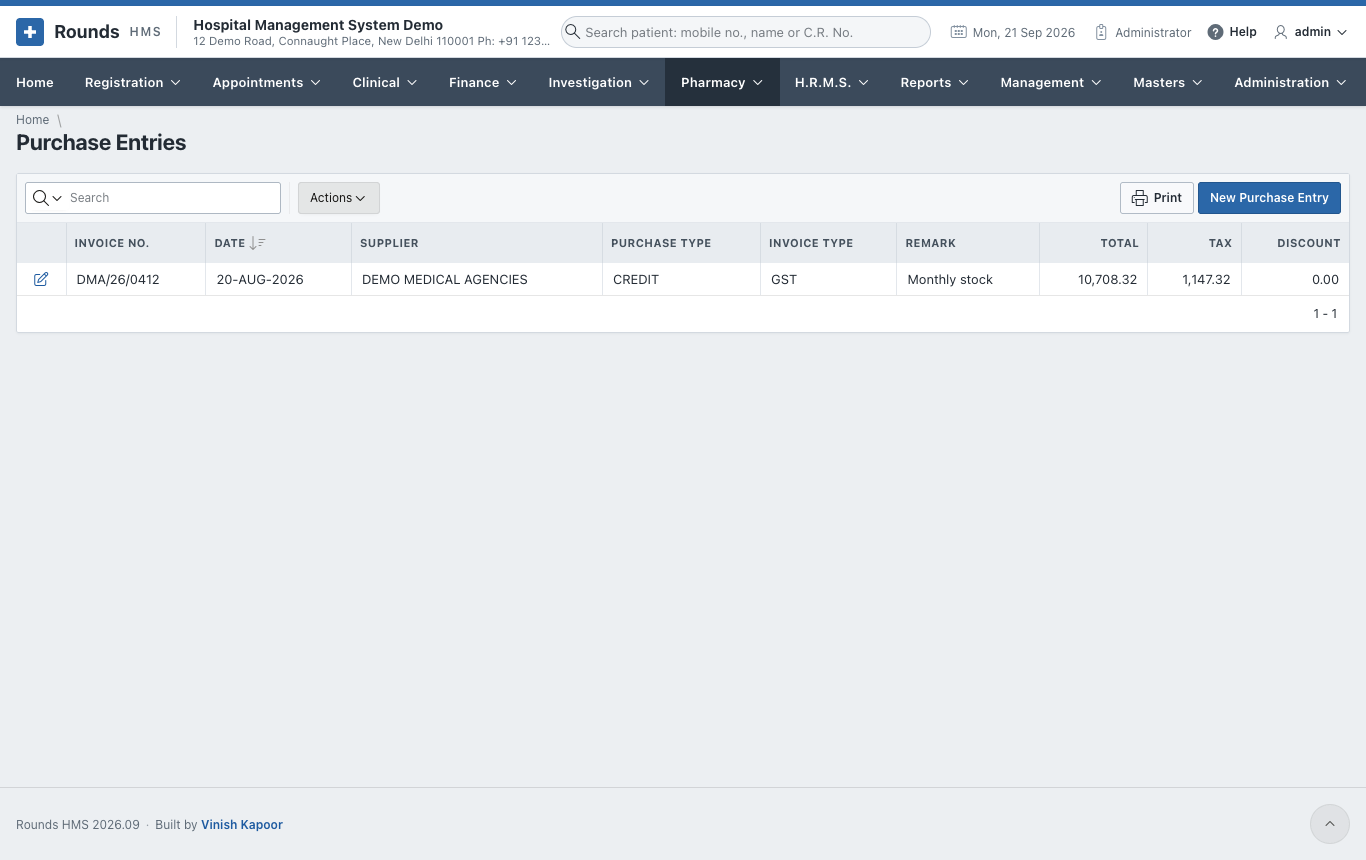
Pharmacy > Purchase Entries receives the supplier's invoice into stock. New Purchase Entry:
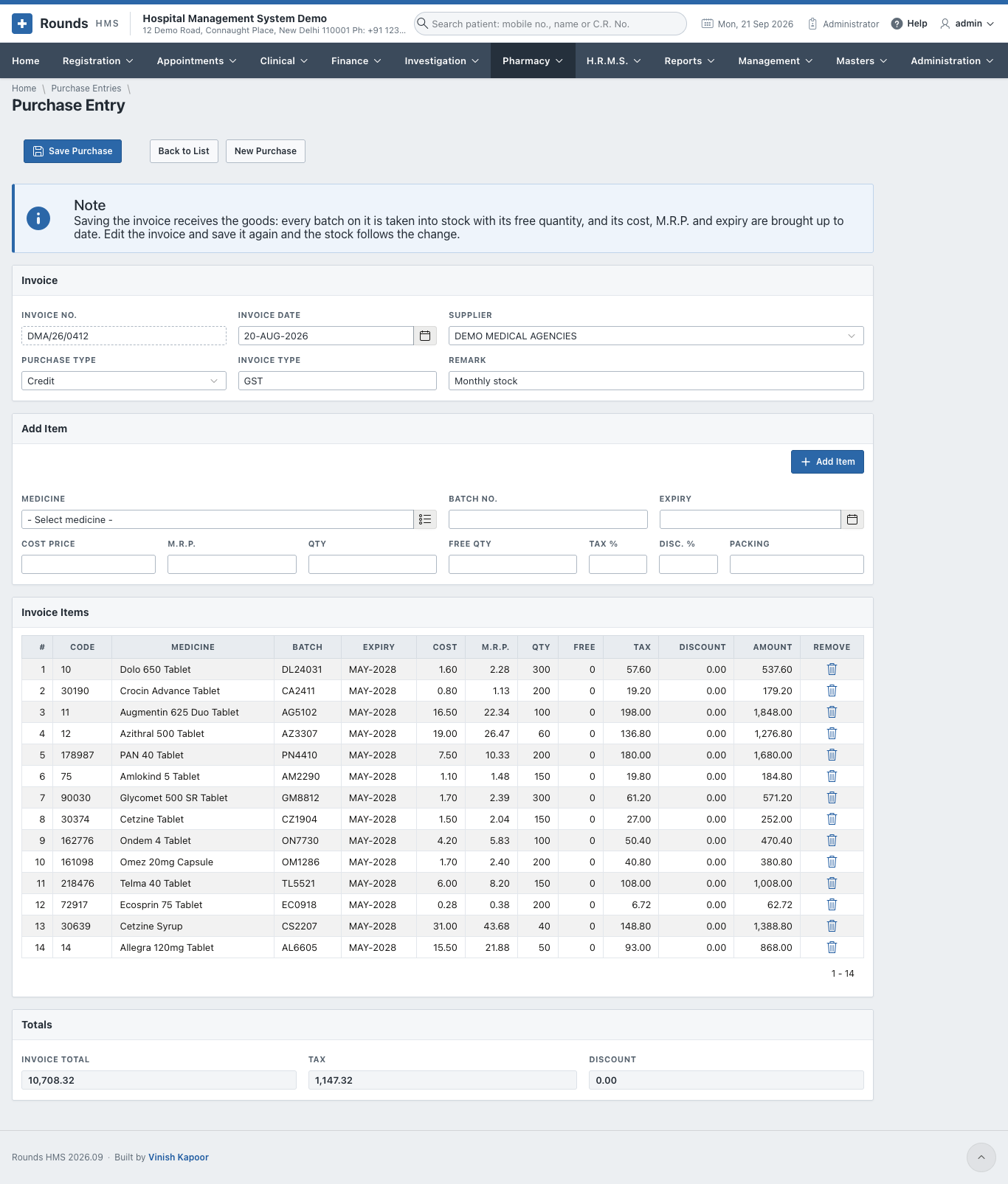
- Invoice:
- the Invoice No., Invoice Date and Supplier;
- the Purchase Type (cash or credit), the Invoice Type and a Remark.
- Add Item, for each line of the invoice:
- the Medicine, Batch No. and Expiry;
- the Cost Price, M.R.P., Qty and Free Qty;
- the Tax %, Disc. % and Packing.
- Totals shows the Invoice Total, the Tax and the Discount. Check them against the paper invoice.
- Click Save Purchase. Every batch on the invoice is taken into stock with its free quantity. Its cost, M.R.P. and expiry are brought up to date.
To correct an invoice, open it, change it and save it again. The stock follows the change.