In the Wards
Discharge summaries
The discharge summary is the clinical summary the patient takes home. It does not discharge the patient: the discharge in the ward (I.P. Admission) and the final bill are separate.
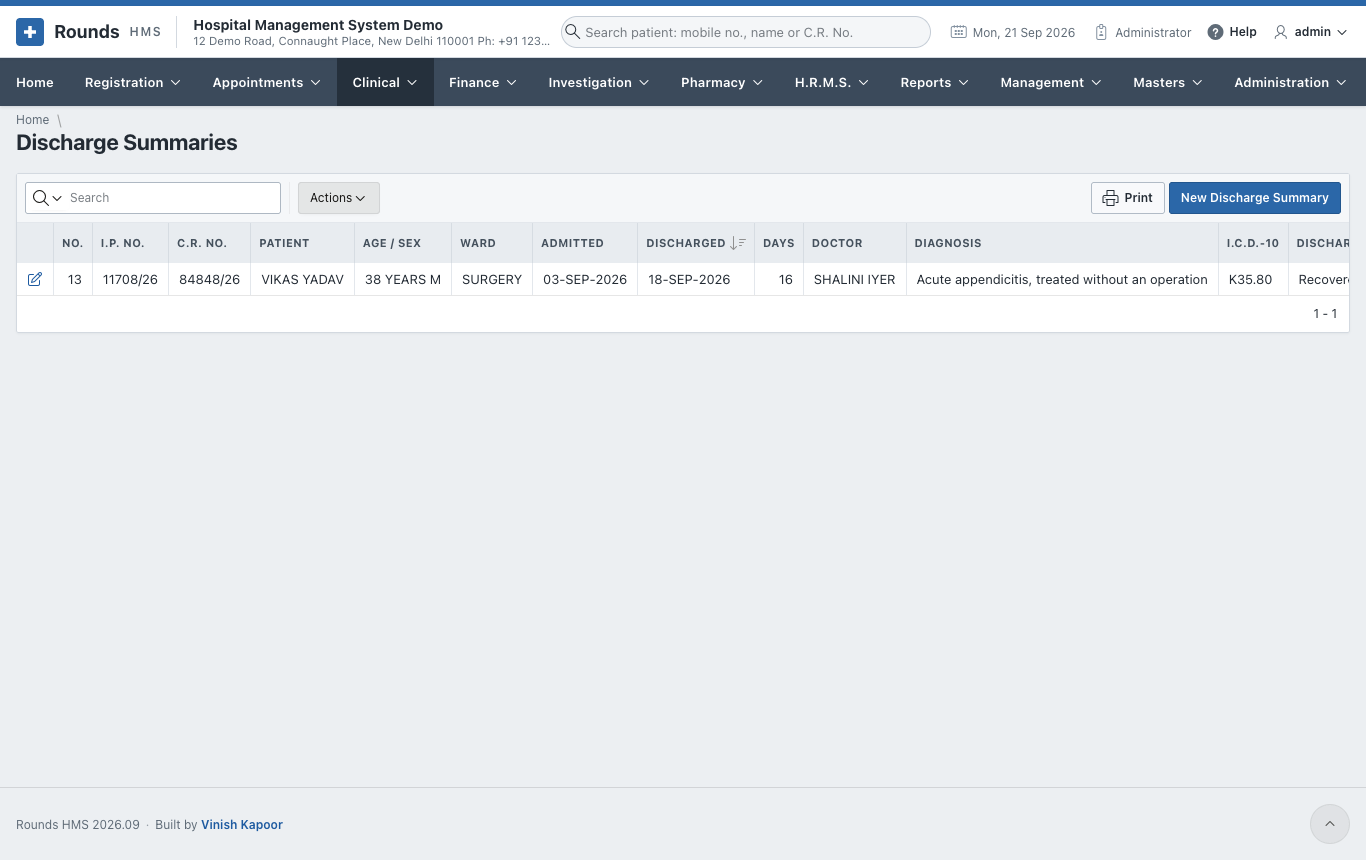
Open Clinical > New Discharge Summary, or open one from Clinical > Discharge Summaries:
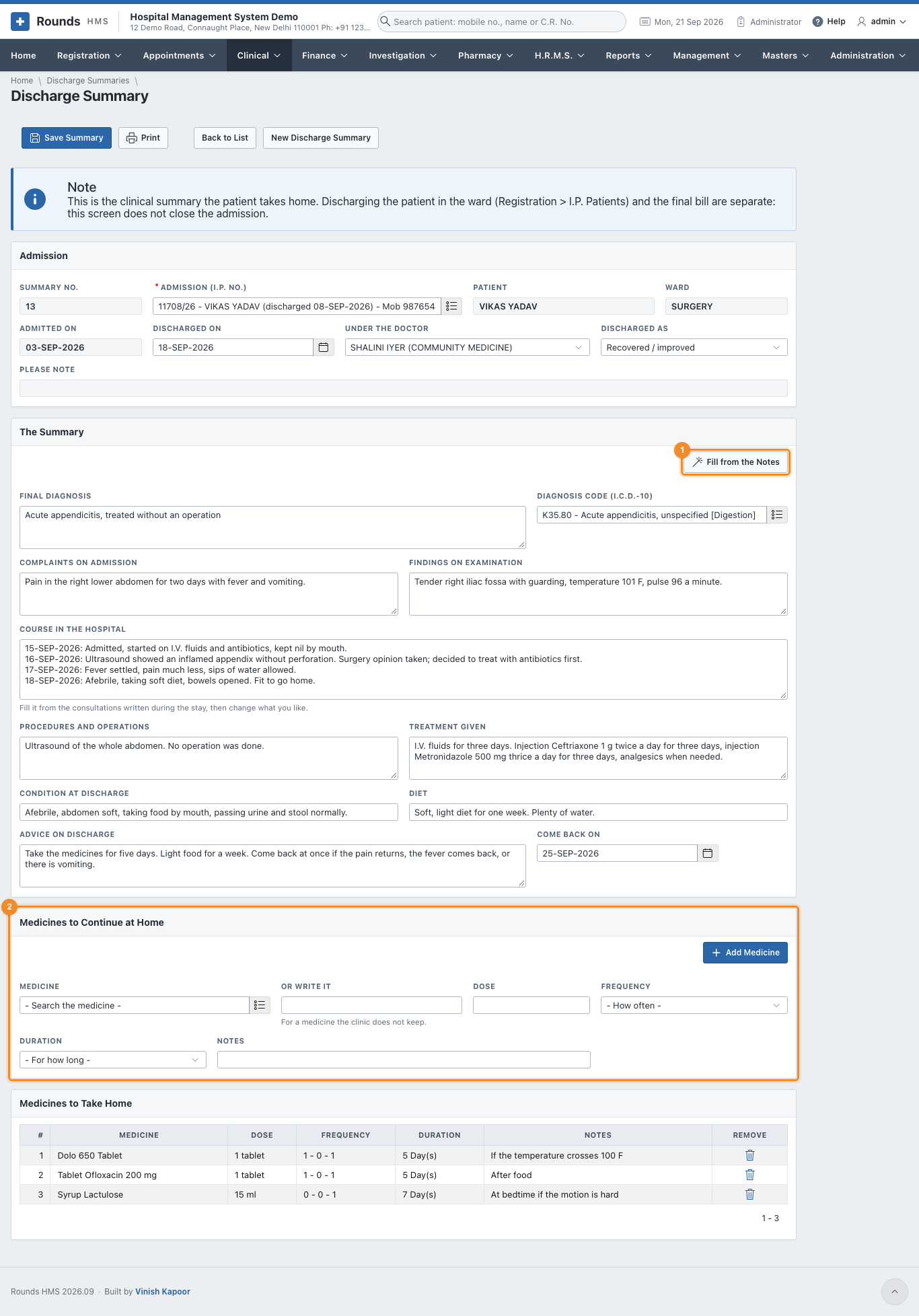
- Admission (I.P. No.): choose the admission. The patient, ward and admission date fill in.
- Discharged On, Under the Doctor, Discharged As (recovered, referred, LAMA, expired ...).
- The Summary:
- Final Diagnosis and its I.C.D.-10 code;
- Complaints on Admission and Findings on Examination;
- Course in the Hospital: 1 Fill from the Notes writes it from the consultations and ward notes of the stay, day by day. Then edit it;
- Procedures and Operations, Treatment Given;
- Condition at Discharge, Diet, Advice on Discharge;
- Come Back On: the follow-up day.
- 2 Medicines to Continue at Home: search each Medicine (or write it), give the Dose, Frequency, Duration and Notes, and click Add Medicine.
- Click Save Summary, then Print. From the print window, WhatsApp tells the patient.
The ward chart
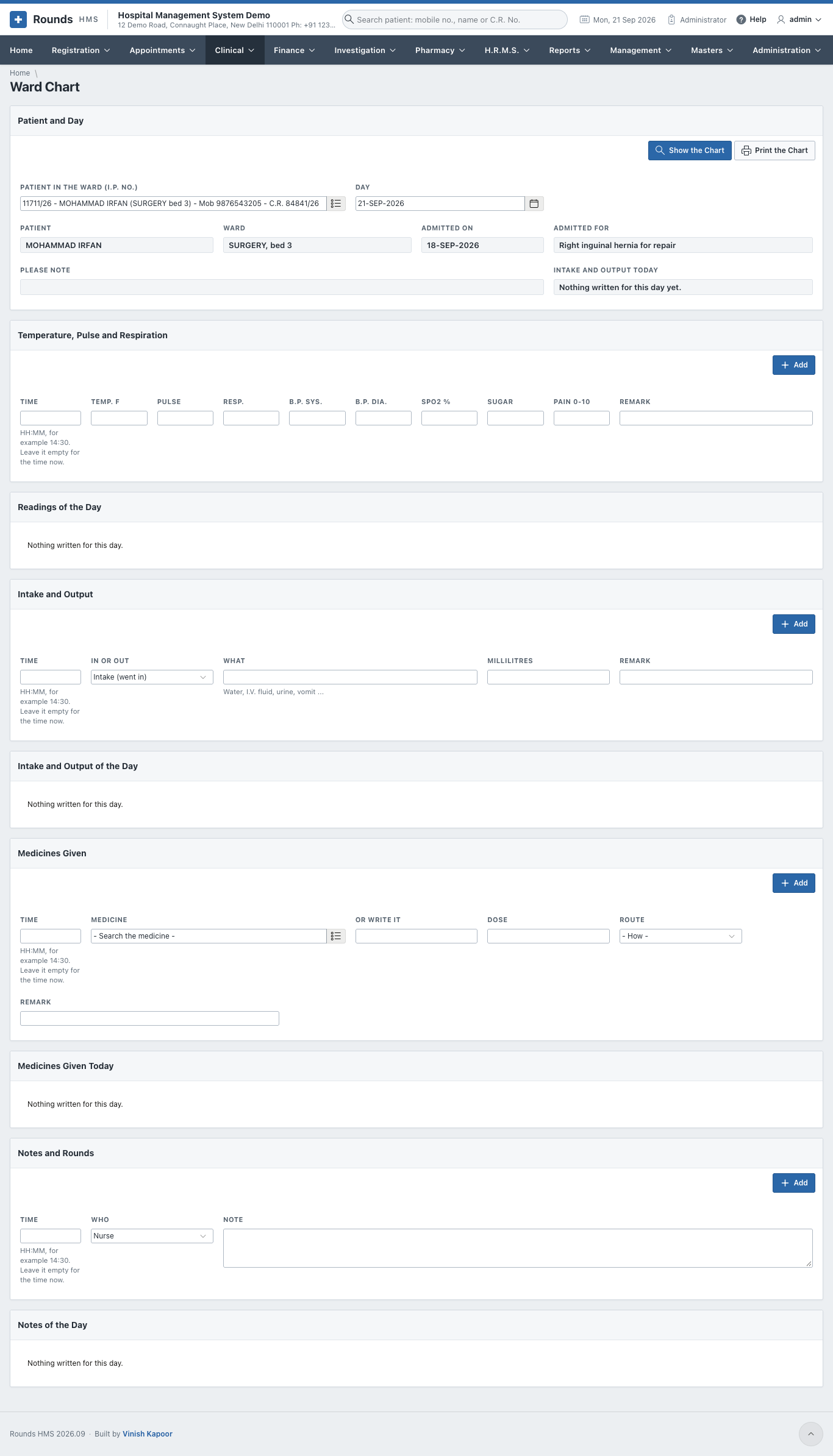
Clinical > Ward Chart is the nurse's chart of one patient for one day.
- Choose the Patient in the Ward (I.P. No.) and the Day, then click Show the Chart. The patient, ward, admission and the alerts appear. Intake and Output Today keeps the fluid balance of the day.
- Each block adds one entry. Its Time can be left empty for "now":
- Temperature, Pulse and Respiration: temperature, pulse, respiration, B.P., SpO2, sugar and pain (0 to 10). Click Add.
- Intake and Output: In or Out, What (water, I.V. fluid, urine, vomit ...) and Millilitres. Click Add.
- Medicines Given: the Medicine, Dose and Route. Click Add.
- Notes and Rounds: Who (nurse, doctor round ...) and the Note. Click Add.
- What was added appears in the list under each block, with who wrote it. The bin icon removes a wrong entry.
- Print the Chart prints the day's chart.