Book Appointment
Open Appointments > Book Appointment, or Book Appointment in the diary, or the Book Appointment tile on the Home page.
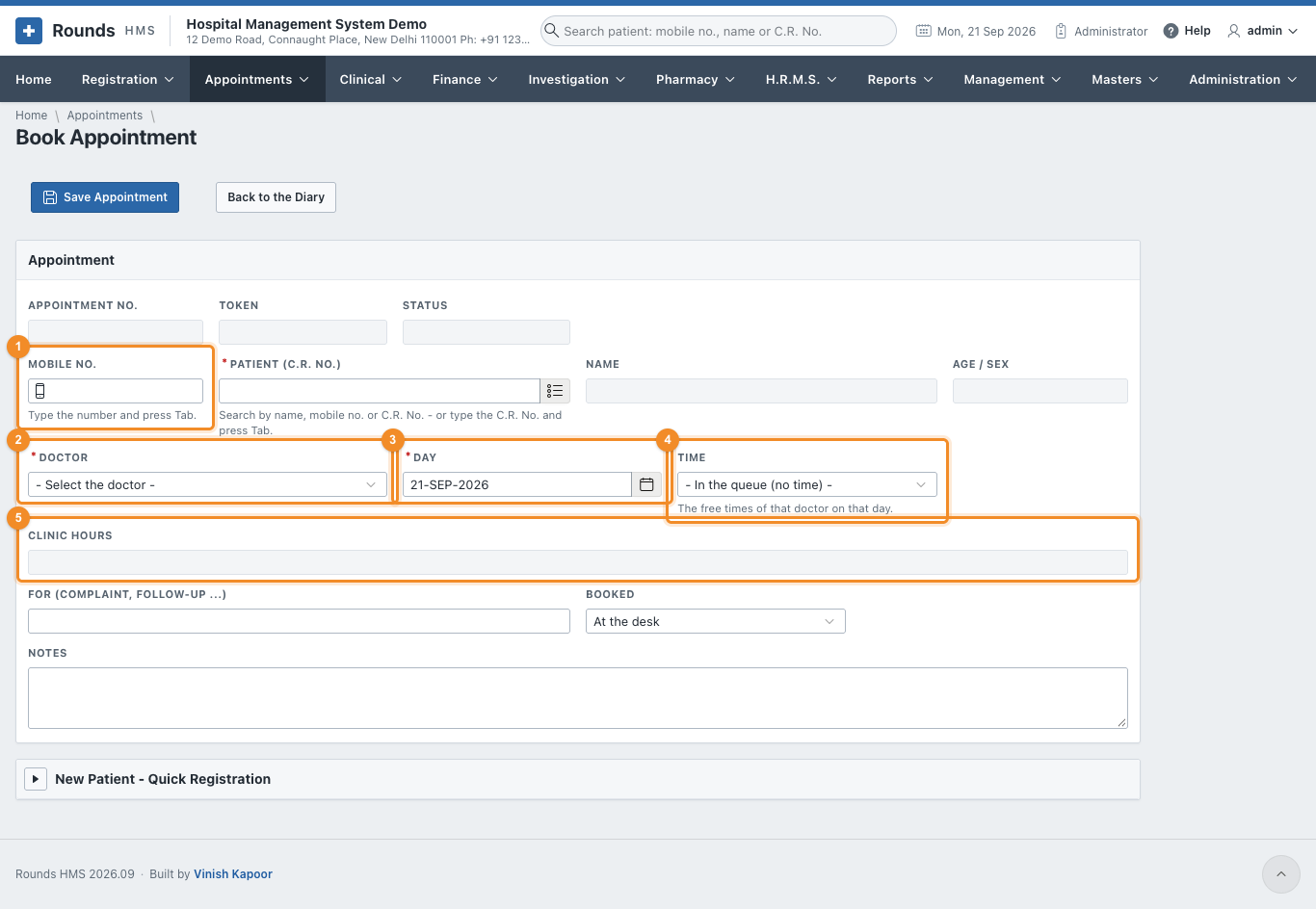
Steps
- 1 Type the patient's Mobile No. and press Tab, or search the Patient (C.R. No.). The name, age and sex appear, with a green line confirming who was found. A patient who is not registered yet can be registered on the spot in New Patient - Quick Registration at the bottom of the page. Fill in the name, age, sex, mobile and unit, then click Register Patient.
- 2 Doctor: filled in with the doctor the patient is registered with. Change it if the patient is seeing someone else.
- 3 Day: the day of the appointment. Only today or a later day can be booked.
- 4 Time: the list offers only the free times of that doctor on that day. A time is free when fewer patients are booked in it than the schedule allows. In the queue (no time) books without a time; the patient is seen in the order of arrival.
- 5 Clinic Hours shows the doctor's hours on that day. If the doctor is on leave, it says so, and nothing can be booked.
- For: the complaint or the reason, e.g. follow-up or report review.
- Booked: at the desk, by phone, online ...
- Notes: anything the desk should know.
- Click Save Appointment.
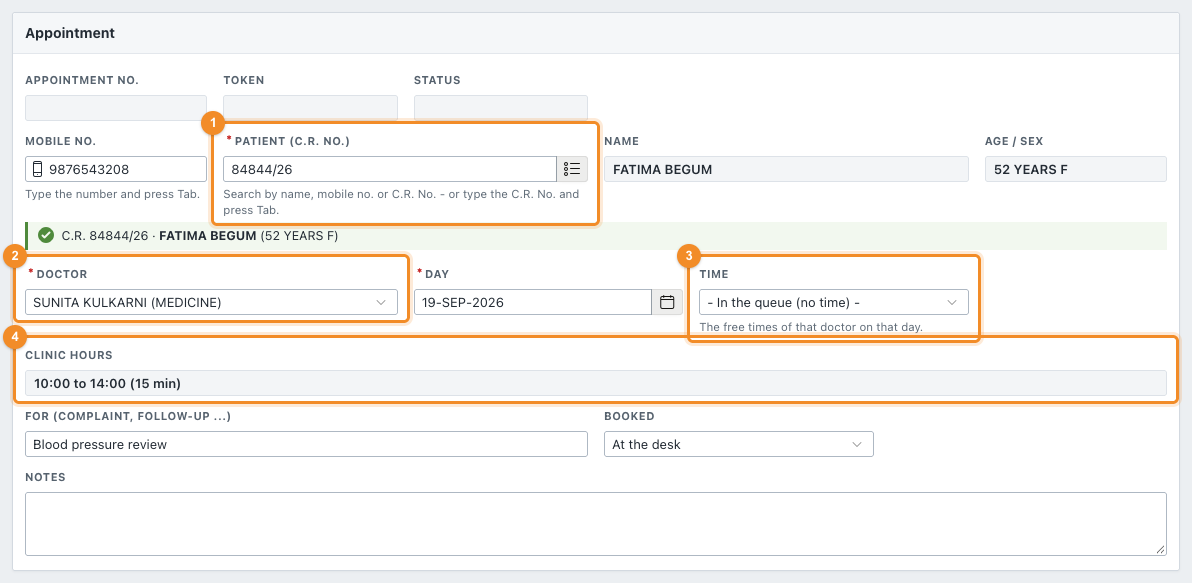
A saved appointment
Once saved, the appointment shows 1 its Appointment No., 2 the Token (given when the patient arrives) and 3 its Status:
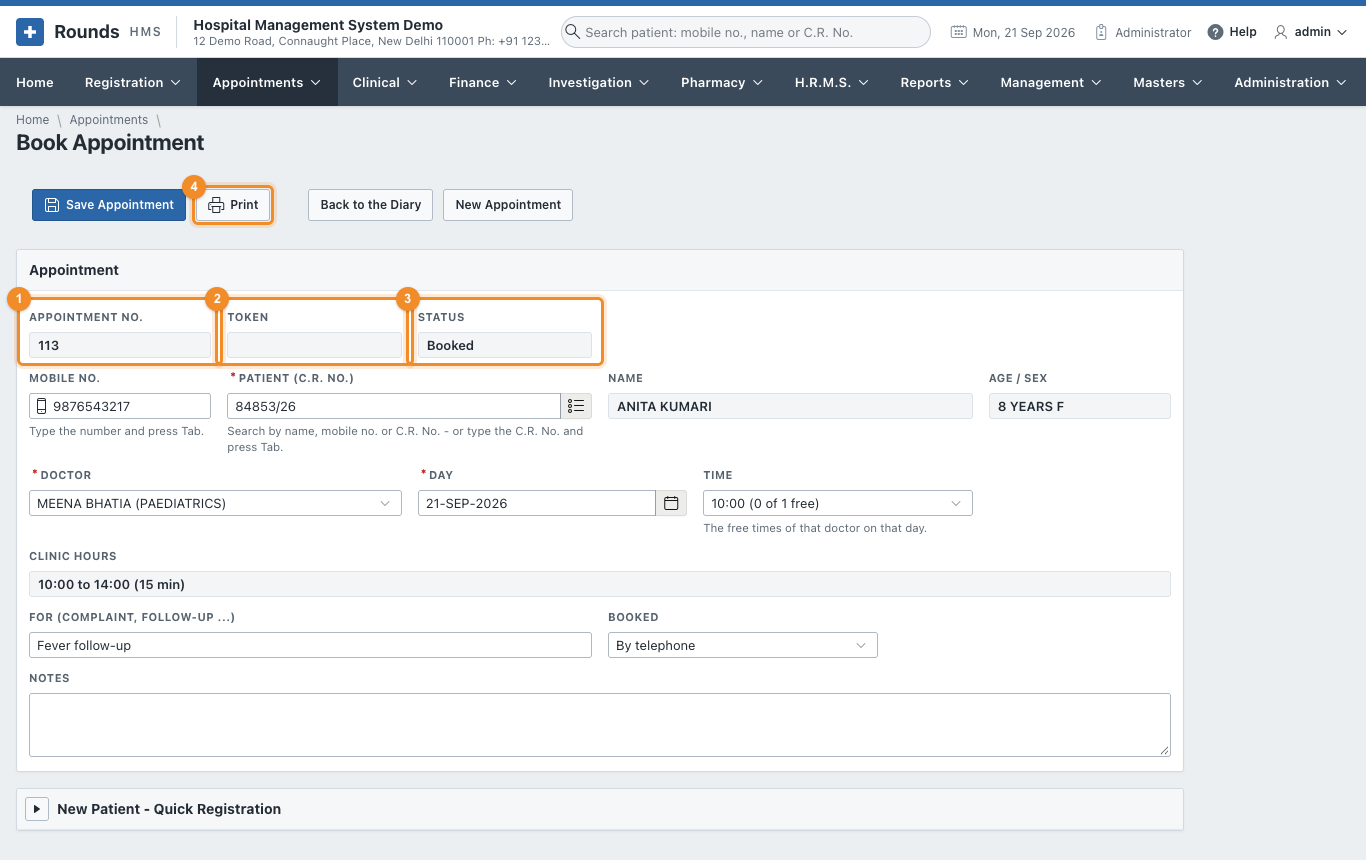
- To reschedule, change the doctor, the day or the time and save. The appointment remembers where it was moved from.
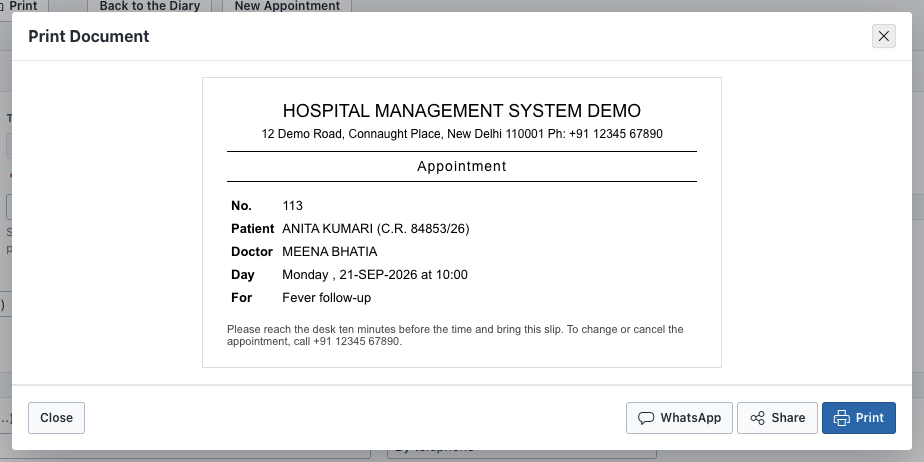
- 4 Print prints the appointment slip for the patient. From the print window, WhatsApp sends the patient the confirmation with the day, time and doctor.
Something went wrong?
- "That day has passed": an appointment cannot be booked for a past day.
- No time is offered: the doctor has no clinic on that day, is on leave, or every slot is full. Look at Doctor Schedules, or book in the queue.